User Profile
The user profile page is where users can view and edit their personal information. Users can also view their past submissions, in-progresss submissions and the submission groups they have created. The user profile page is accessible by clicking on “Profile” on the navigation bar.

Personal Information
In this section of the page, users can view and edit their personal information. This includes their name, email address and email notification preference. Users can also change their password here.
The “Receive notification emails?” checkbox allows users to control whether they want to receive email notifications for new submissions. By default, this checkbox is checked.
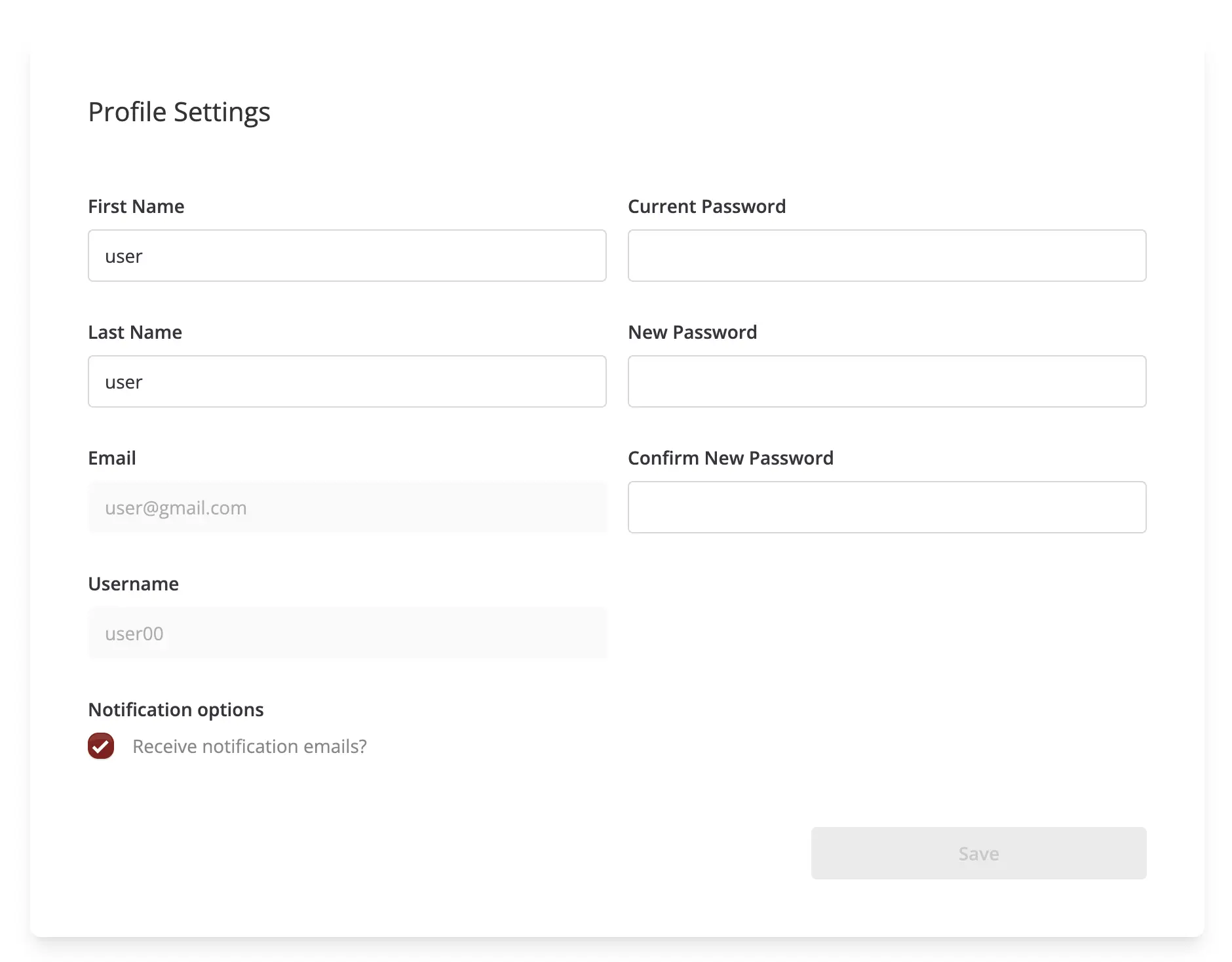
To save changes made to personal information, click on the “Save” button.
In-Progress Submissions
This section displays a table of all submissions that the user has started but not yet submitted.
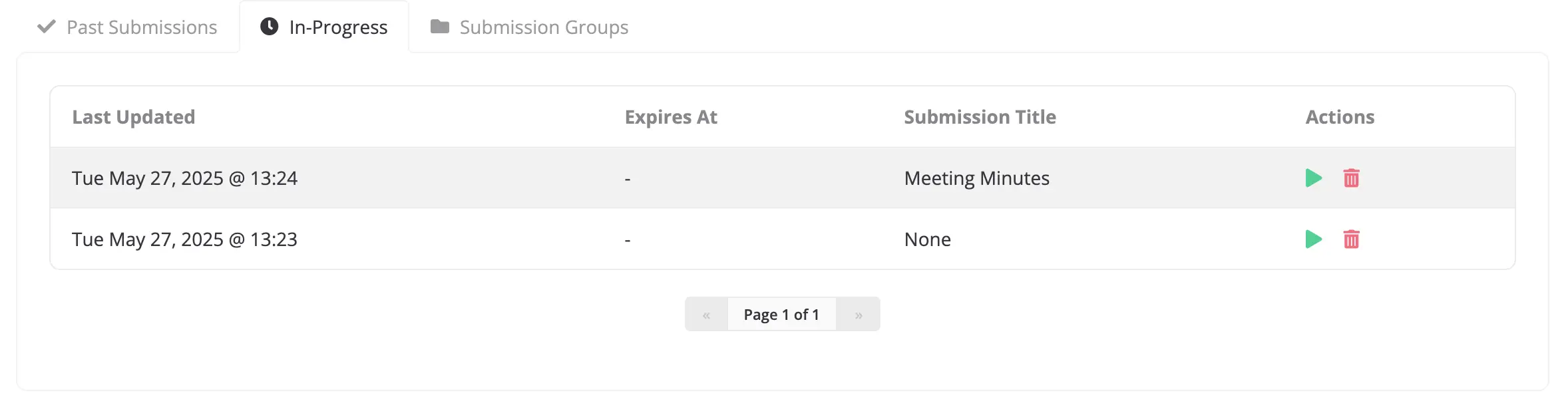
The “Submission Title” column displays the title provided by the user in the “Title” field of Step 4: Record Description of the Submission Form. If that field has not been filled out yet, the title will be “None”.
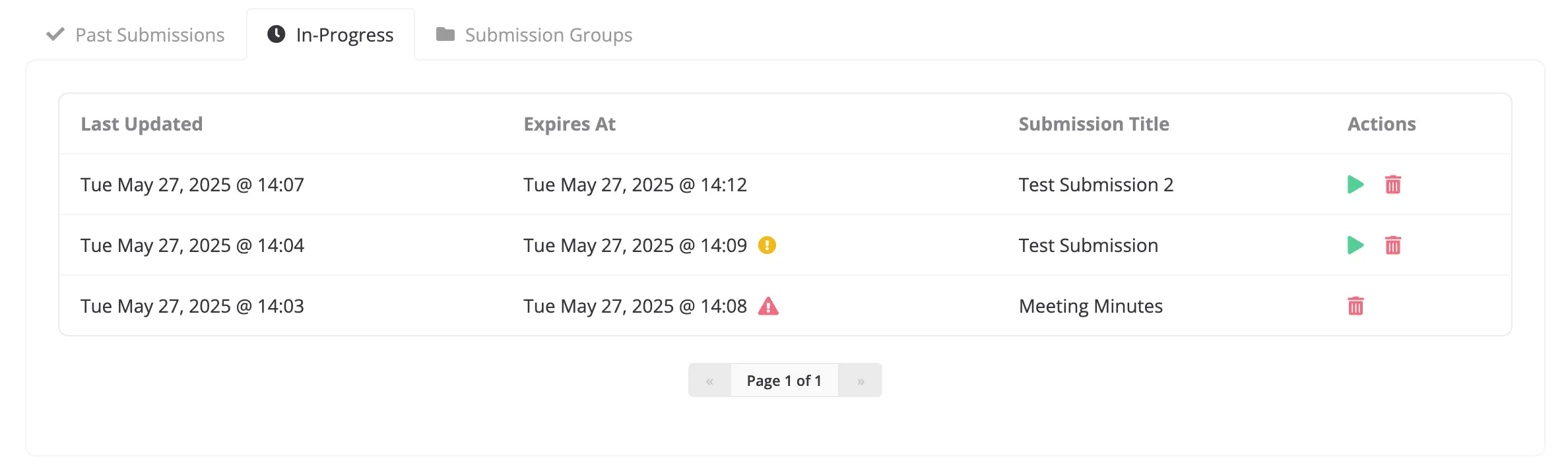
Expirable in-progress submissions will have an expiry date shown under the “Expires At” column. This is the date when the in-progress submission will expire if it is not submitted or updated. Expired in-progress submissions can no longer be resumed or submitted. In-progress submissions close to expiring will have their expiry date highlighted in red, whereas in-progress submissions that have already expired will have their expiry date both highlighted in red and striked through.
Note
Only in-progress submissions with uploaded files can expire.
The length of time before an in-progress submission expires can be configured in the settings. See UPLOAD_SESSION_EXPIRE_AFTER_INACTIVE_MINUTES and UPLOAD_SESSION_EXPIRED_CLEANUP_SCHEDULE for more information.
A reminder email will be sent to the user before the in-progress submission expires. The amount of time before the expiry date that the reminder email is sent can be configured in the settings. See UPLOAD_SESSION_EXPIRING_REMINDER_MINUTES and IN_PROGRESS_SUBMISSION_EXPIRING_EMAIL_SCHEDULE for more information.
Resuming an In-Progress Submission
Users can resume working on an in-progress submission by clicking on the green play icon for the relevant submission in the table. This will take them back to the submission form where they left off.
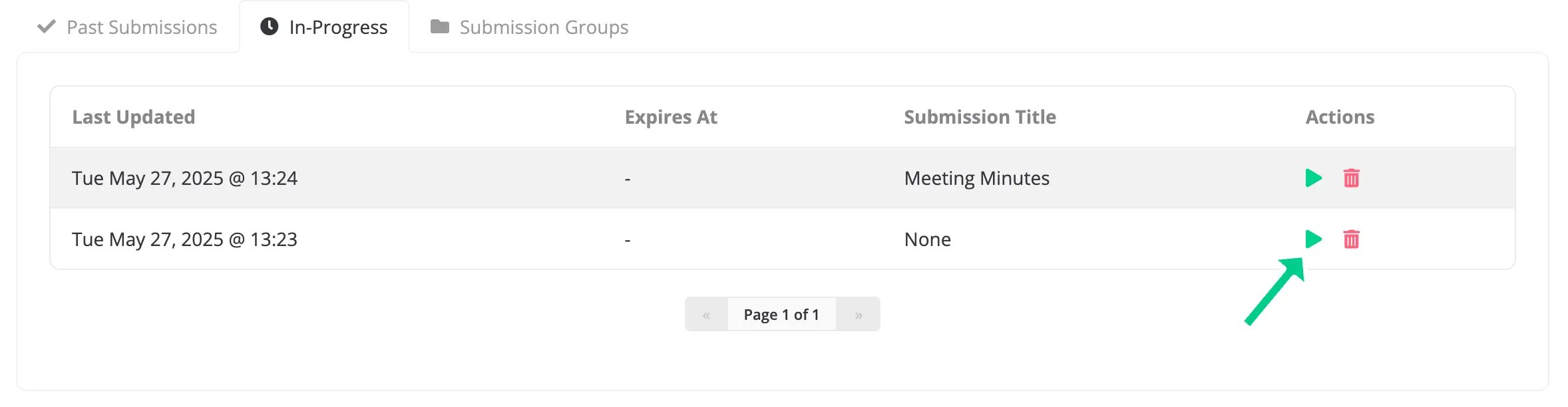
Once an in-progress submission is submitted, it will no longer appear in this table. Instead, it will be listed under the Past Submissions section.
Deleting an In-Progress Submission
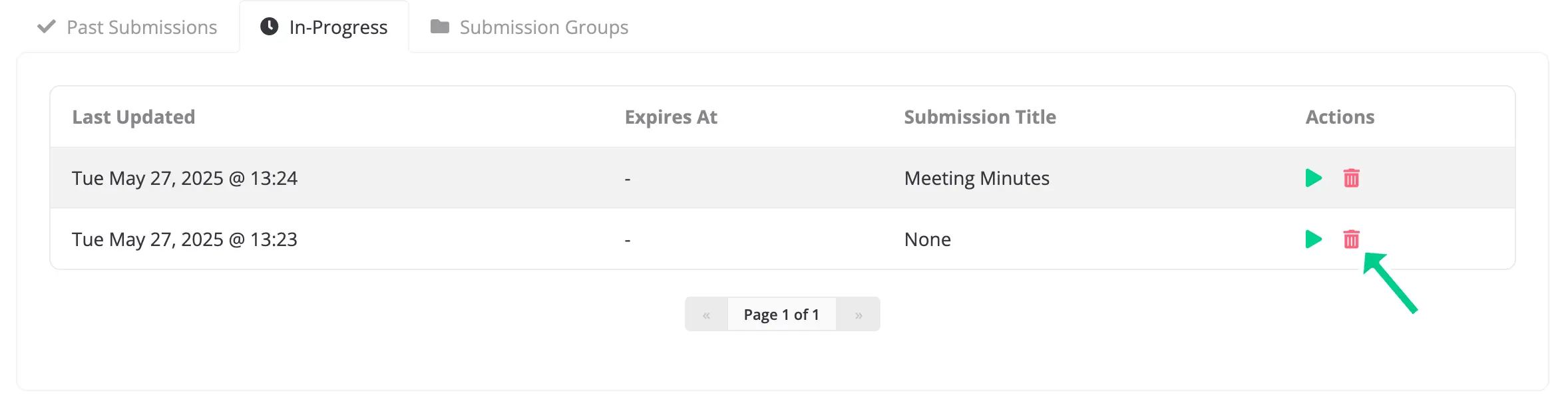
Users can delete an in-progress submission if they no longer wish to complete it or if it has expired. To delete a submission, click the trash can icon on the relevant row of the table.
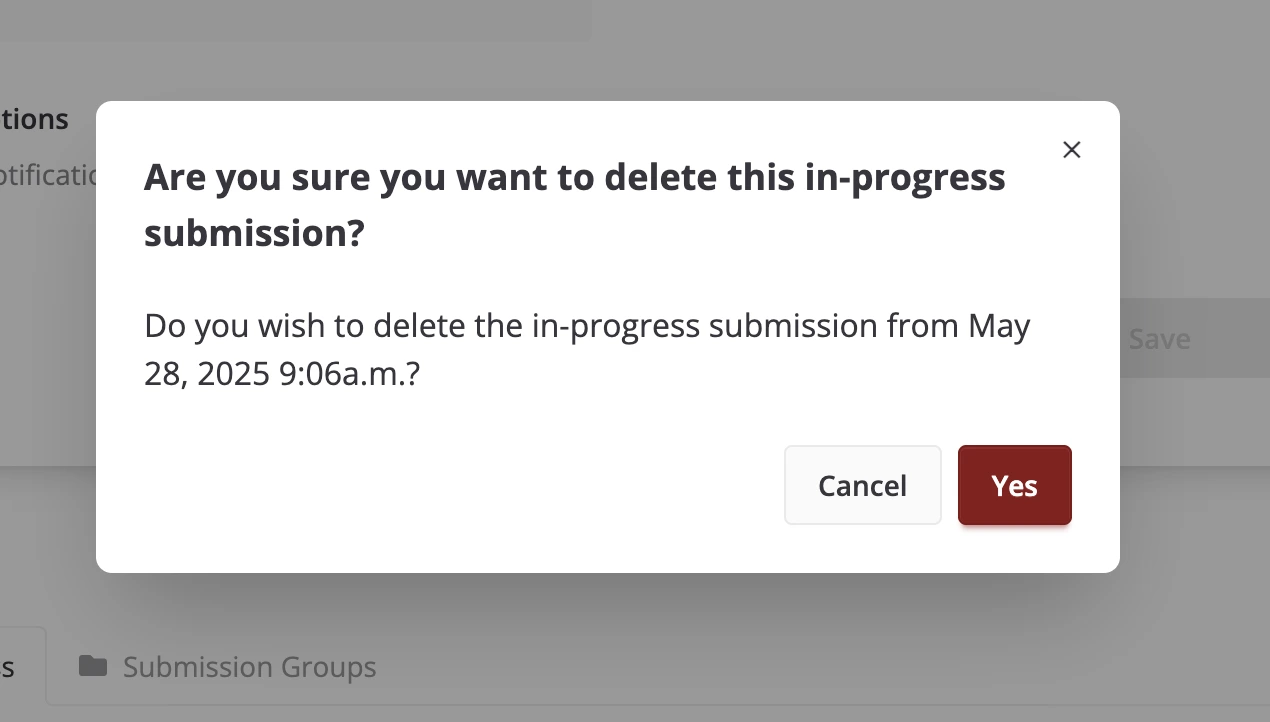
This will open a confirmation dialog where the user can confirm that they want to delete the in-progress submission. If ‘Yes’ is clicked, the in-progress submission and any uploaded files associated with it will be permanently removed from the system. Clicking on ‘Cancel’ will close the dialog and keep the user on the Profile page.
After deletion, the submission will no longer appear in the in-progress submissions table.
Past Submissions
This section displays a table of all submissions that the user has submitted in the past.
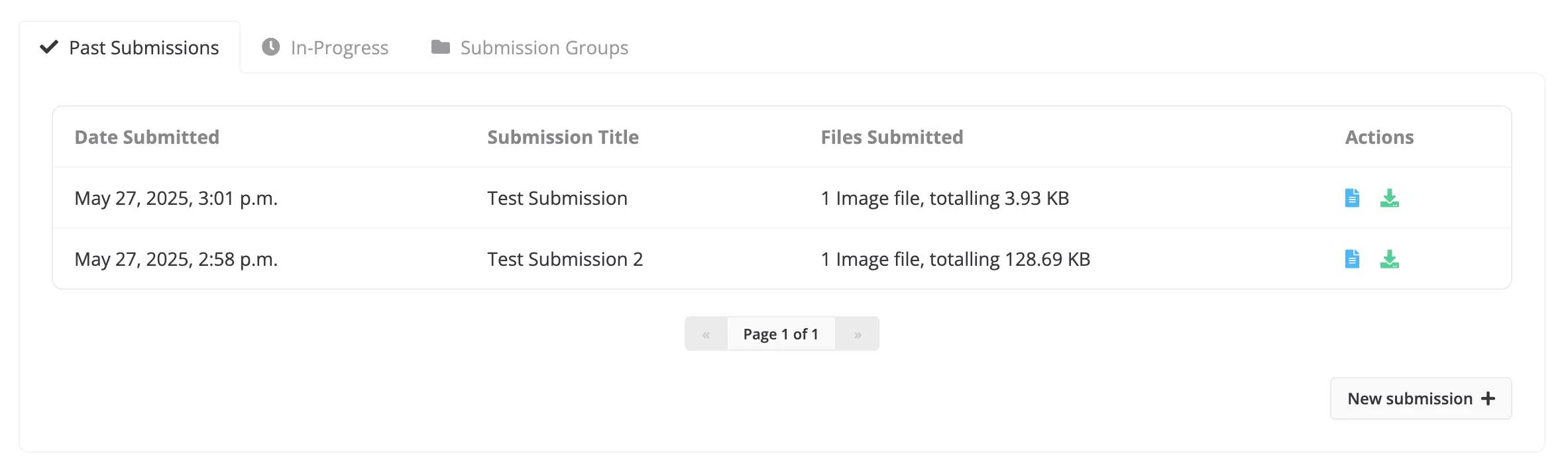
The user can view the details of a past submission by clicking on the blue file icon on the relevant row of the table. This will open up a submission details page for that submission.
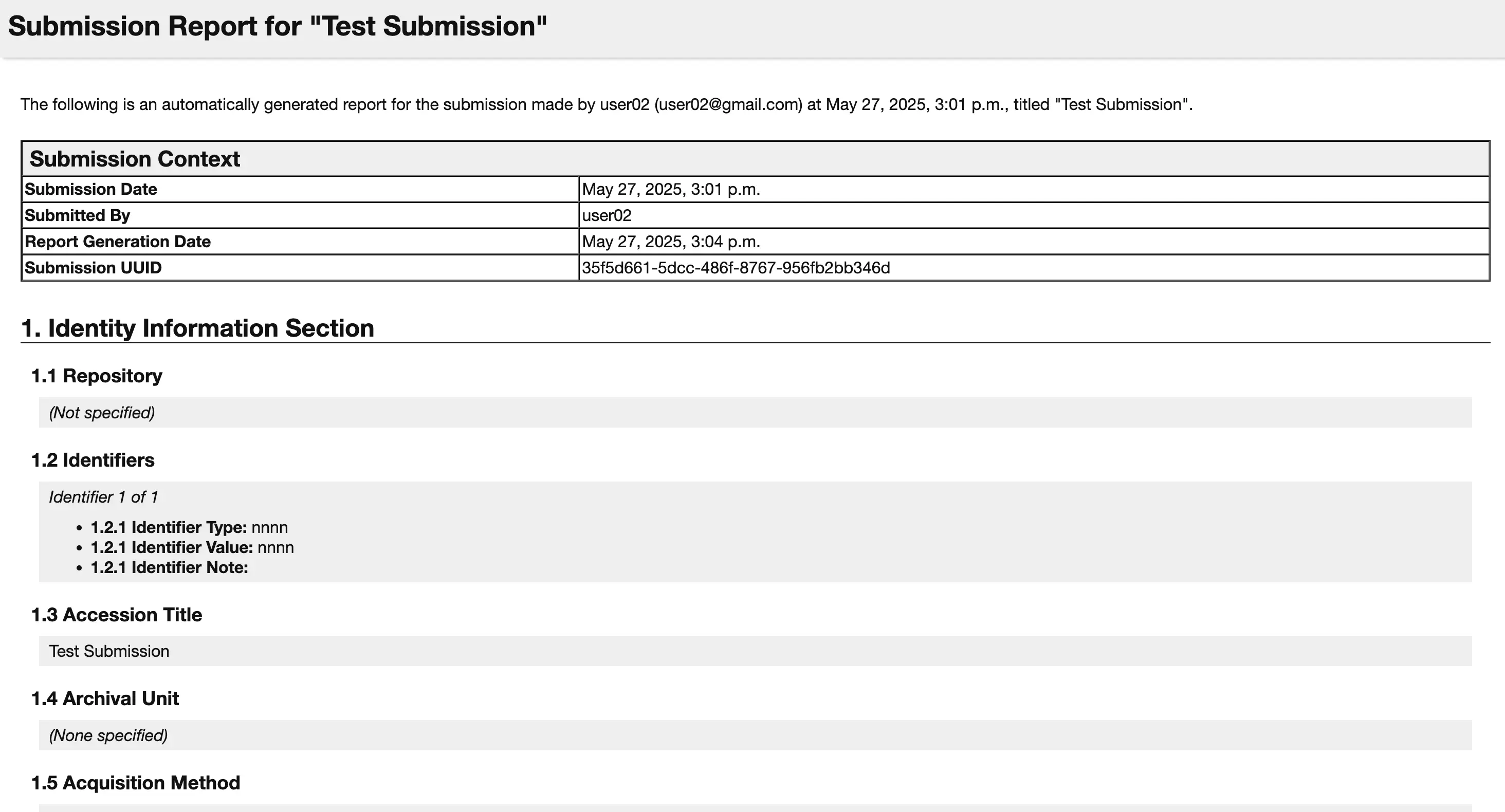
Alternatively, the user can download a CSV file of the submission by clicking on the green download icon on the relevant row of the table.
Submission Groups
This section displays a table of all submission groups that the user has created. Submission groups that are made by the user during Step 7: Assign Submission to Group of the Submission Form will be listed here. A new submission group can also be created by clicking on “New submission group +” found below the table.
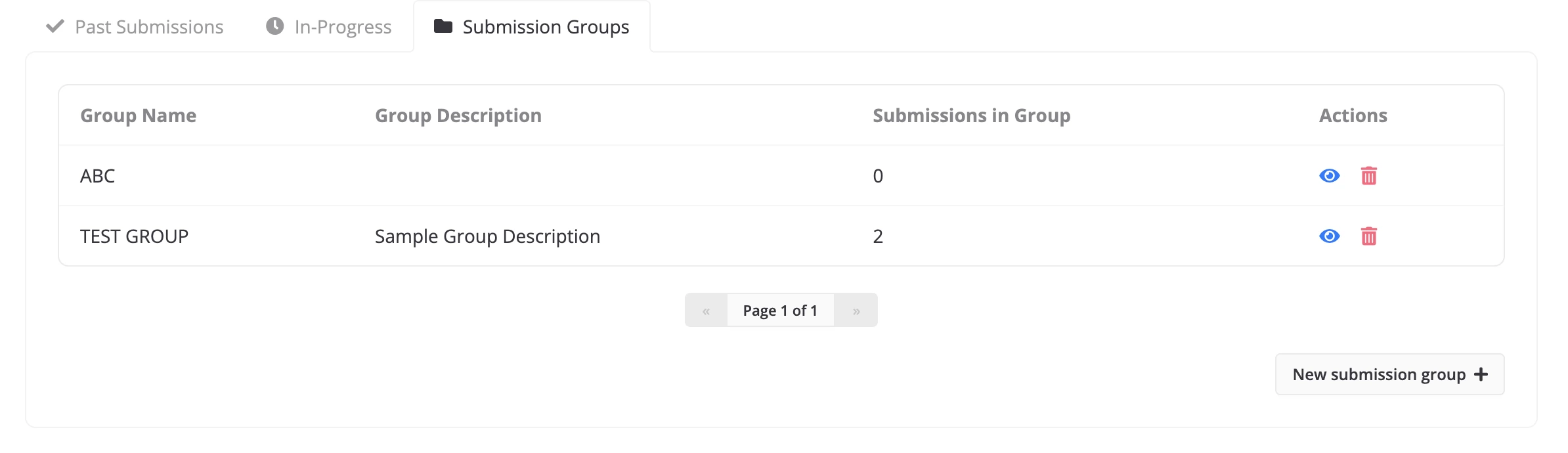
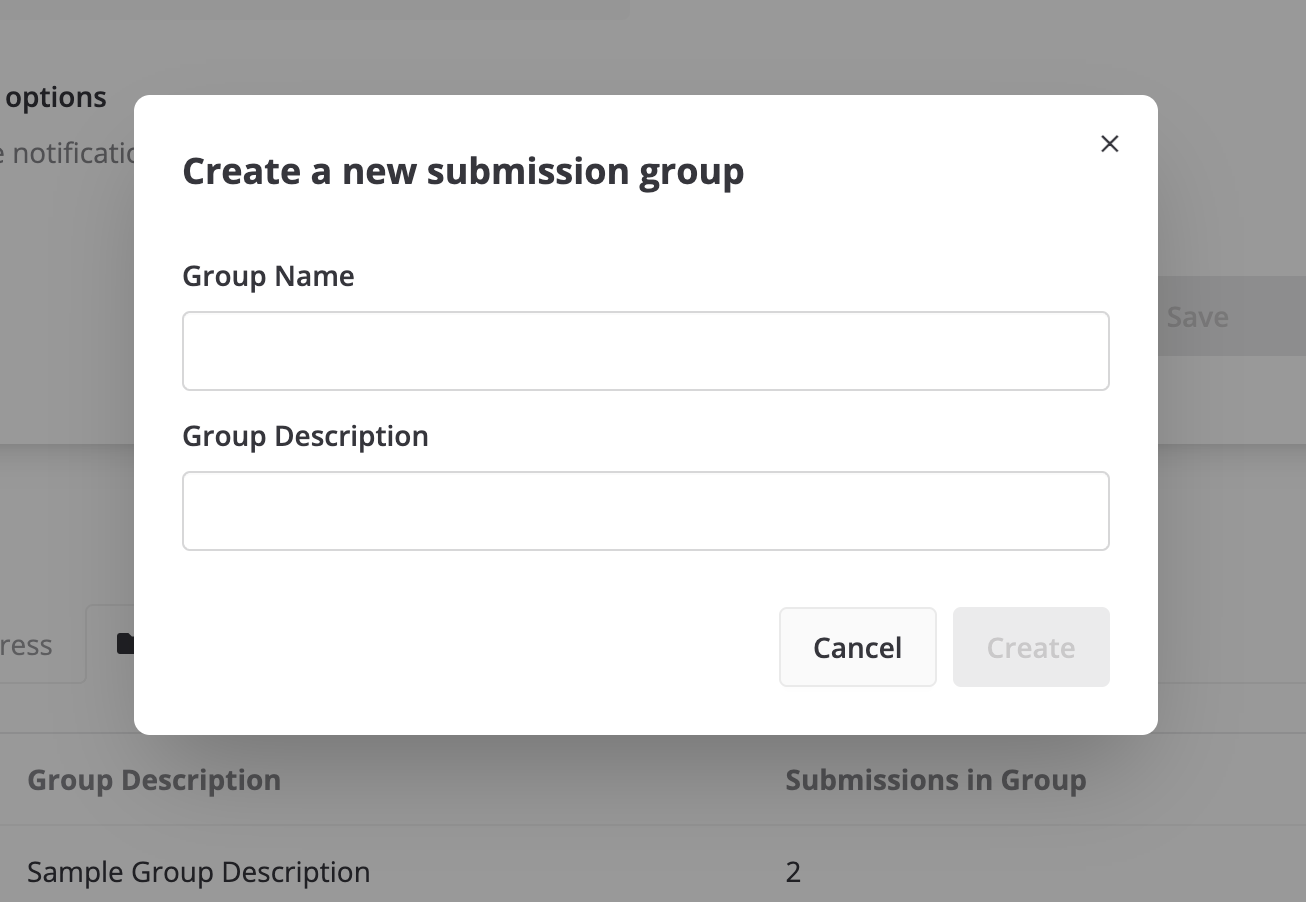
This takes the user to the submission group creation page where they can create a new submission group.
The user can also view and modify the details of an existing submission group by clicking on the blue eye icon for that group in the table on the profile page.

This will take the user to a page where they can modify the group name and group description, and also view past submissions made under this group.
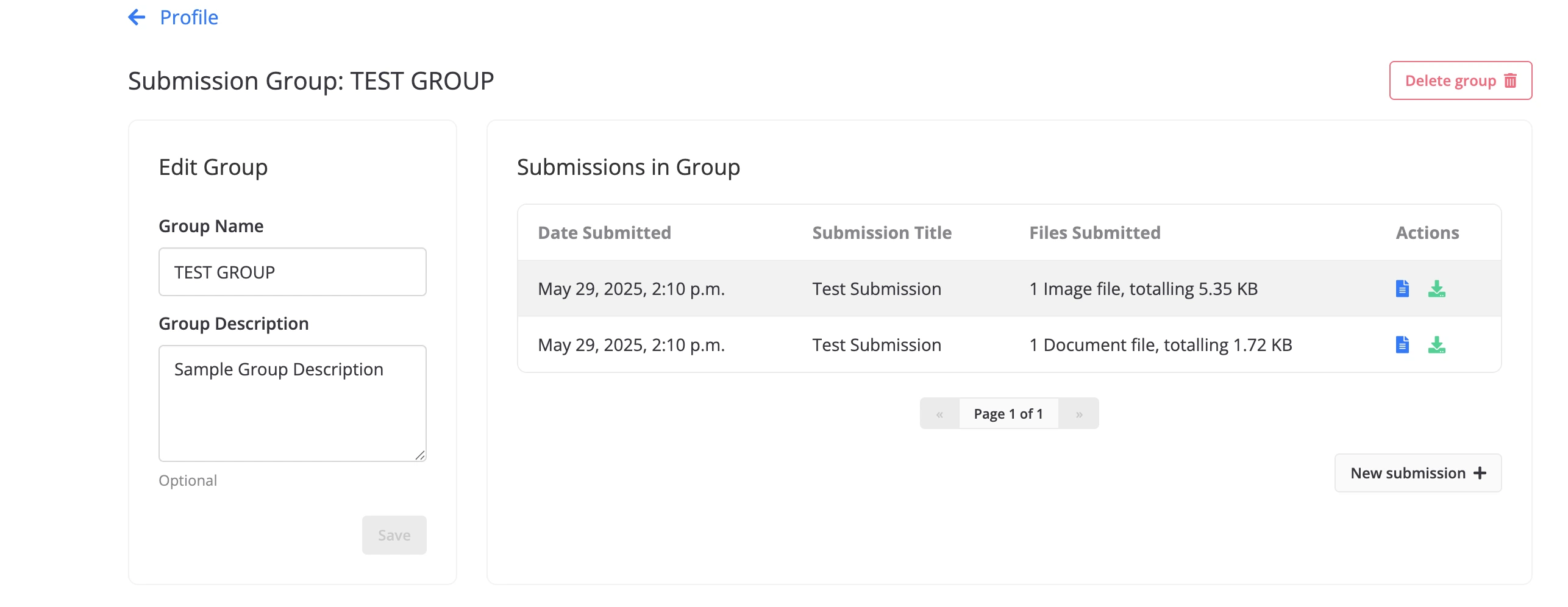
Clicking on “New submission +” takes the user to the Submission Form with the submission group pre-selected.
You can also click on the red trash icon to remove a submission group.
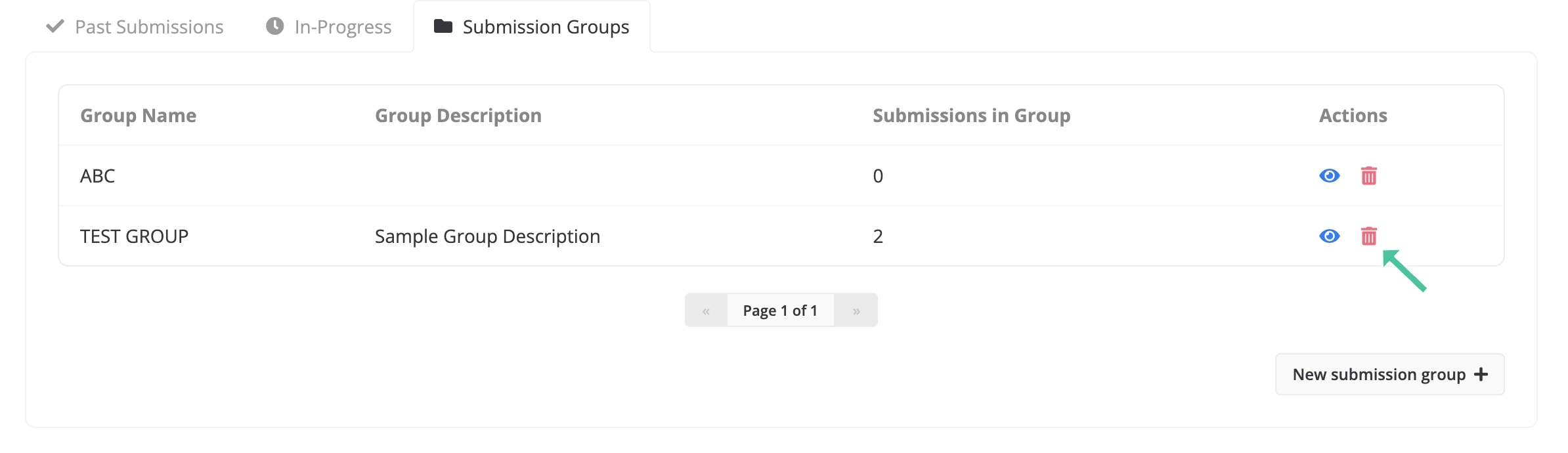
When you do this, a confirmation dialog box will appear asking if you are sure you want to delete the group.
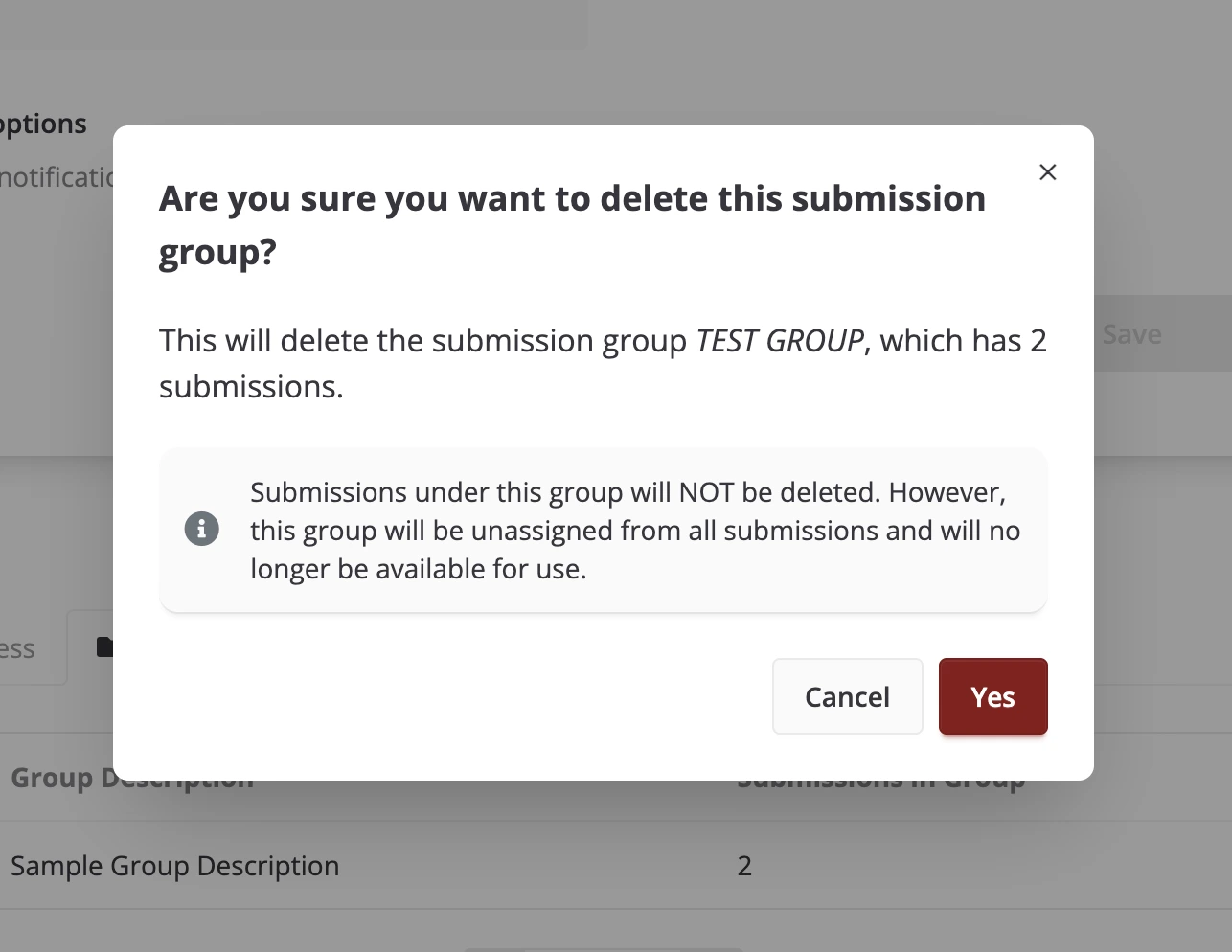
Click Yes to proceed with deleting the submission group. This will remove the group, but any submissions previously associated with it will remain intact, they will simply no longer be associated with any group.
Click Cancel if you do not wish to proceed with the deletion. This will close the dialog and return you to the profile page without making any changes.