Managing Admin Interface Themes
The Secure Record Transfer application provides customizable themes for the admin interface. This allows administrators to customize the appearance of the admin interface to match organizational branding or improve usability.
Note
Only superusers can access and manage admin interface themes. Regular admin users will not see the Theme Admin.
Changing the Theme
To change the currently active theme:
Log into the admin interface as a superuser
Navigate to Admin Interface → Themes
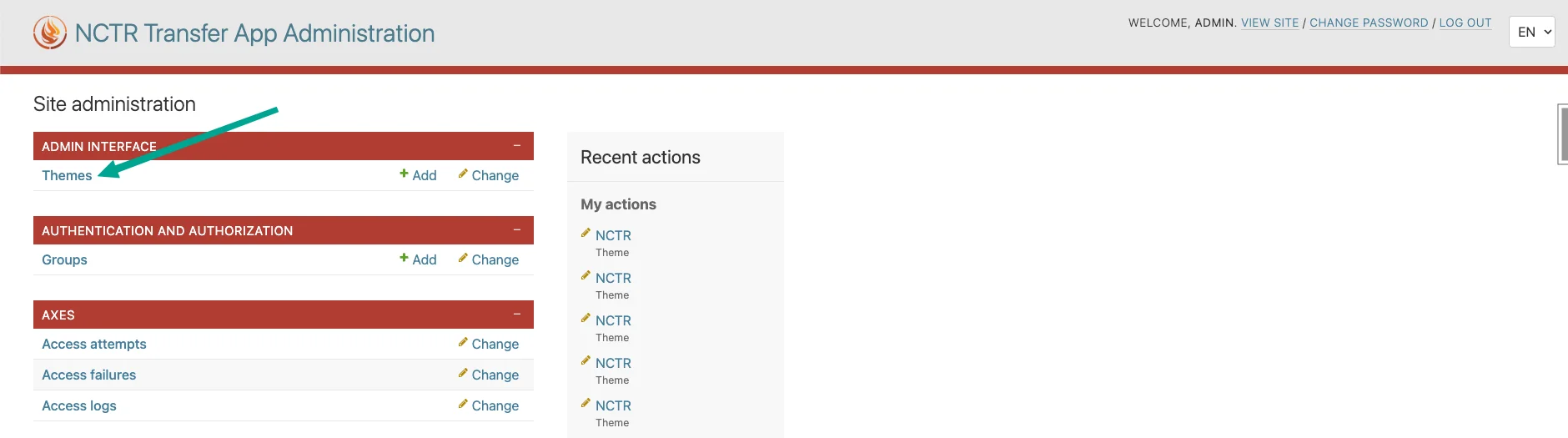
You will see a list of available themes
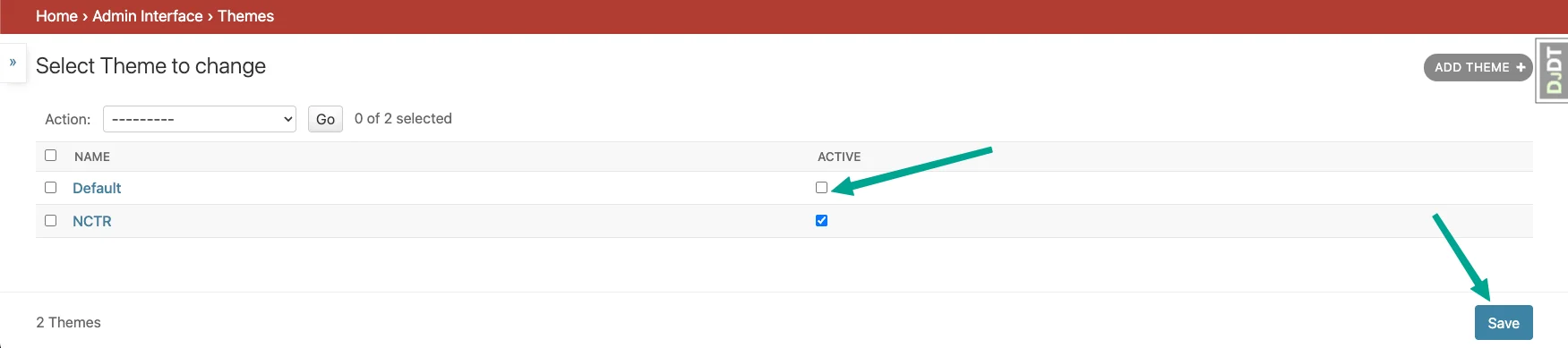
Check the Active checkbox on your desired theme and click on “Save” to enable it
Warning
Changing the active theme will affect the admin interface appearance for all admin users site-wide. The change takes effect immediately after saving.
Note
Only one theme can be active at a time. Activating a new theme will automatically deactivate the previously active theme.
Adding a New Theme
To create a new custom theme:
Navigate to Admin Interface → Themes in the admin
Click the Add Theme button
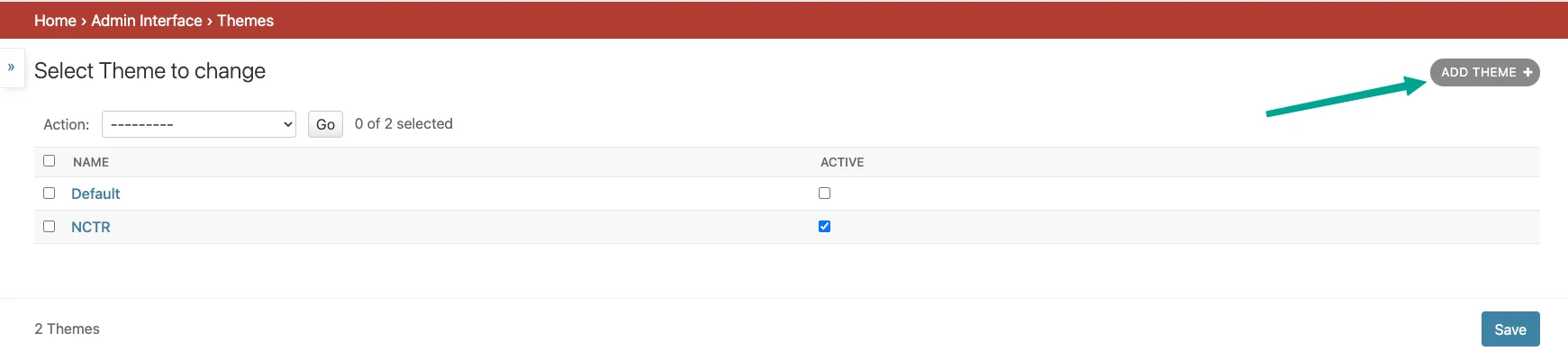
Make your desired changes to any of the theme settings (see Theme Settings below)
Click Save to create the theme
Modifying an Existing Theme
To modify an existing theme:
Navigate to Admin Interface → Themes in the admin
Click on the theme you want to modify from the list
Make your desired changes to any of the theme settings (see Theme Settings below for detailed descriptions)
Click Save to apply your modifications
Warning
Modifying a theme that is currently active will immediately affect the admin interface appearance for all admin users site-wide. Changes take effect as soon as the theme is saved.
Theme Settings
The admin interface theme form is organized into several sections, each controlling different aspects of the admin interface appearance and behavior.
Note
The “Environment” and “Inlines” setting sections are left undocumented as their purpose and functionality are unclear.
Basic Settings
- Name
A descriptive name for the theme (e.g., “NCTR”, “Dark Theme”, “Custom Brand”)
- Active
Checkbox to activate this theme. Only one theme can be active at a time.
Language Chooser
Note
Only languages which are set in the application settings will be available. This setting is not configurable.
- Active
Checkbox to enable/disable the language selection dropdown in the navigation bar.
- Control
Dropdown selection for the type of language selector: -
Default Select- Standard dropdown
Minimal Select- More discreet dropdown
- Display
How language options are displayed:
code- Show language codes (e.g., “en”, “fr”)name- Show language names (e.g., “English”, “French”)
Logo (not supported)
Note
Custom logos are not currently supported. The NCTR logo is used by default in the application.
- Logo
Upload field for a logo image file
- Max Width
Maximum width in pixels for the logo (e.g., 400)
- Max Height
Maximum height in pixels for the logo (e.g., 40)
- Color
Hex color code for the logo tint/overlay
- Visible
Checkbox to show/hide the logo
Favicon (not supported)
Note
Custom favicons are not currently supported. The NCTR favicon is used by default in the application.
- Favicon
Upload field for a custom favicon (.ico file)
Title

- Title
The text displayed in the admin interface header
- Color
Hex color code for the title text
- Visible
Checkbox to show/hide the title in the header
Header
Controls the appearance of the admin interface header/ navigation bar.

- Background Color
Hex color code for the header background
- Text Color
Hex color code for header text
- Link Color
Hex color code for links in the header
- Link Hover Color
Hex color code for header links on hover
Breadcrumbs/Module Styling
Controls the appearance of the breadcrumbs, app modules and fieldset headings.
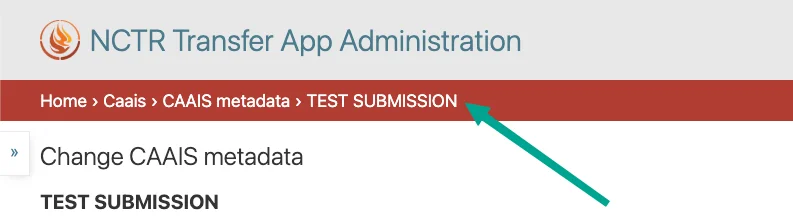
Breadcrumbs example
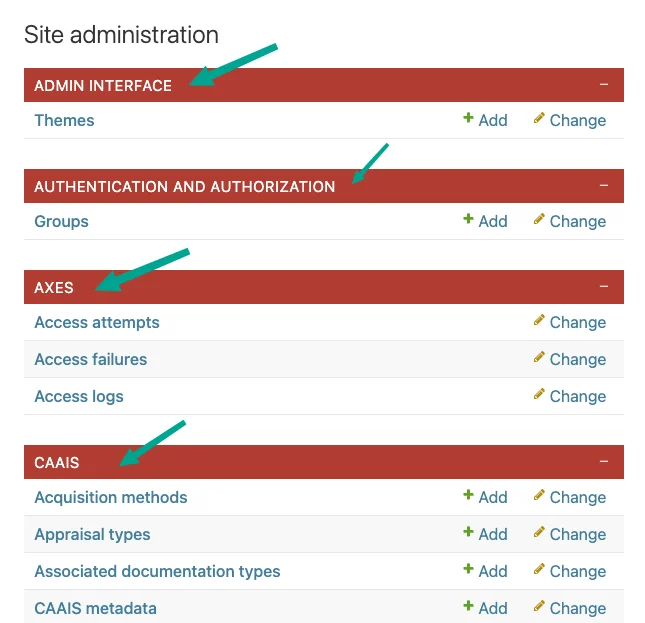
App modules example
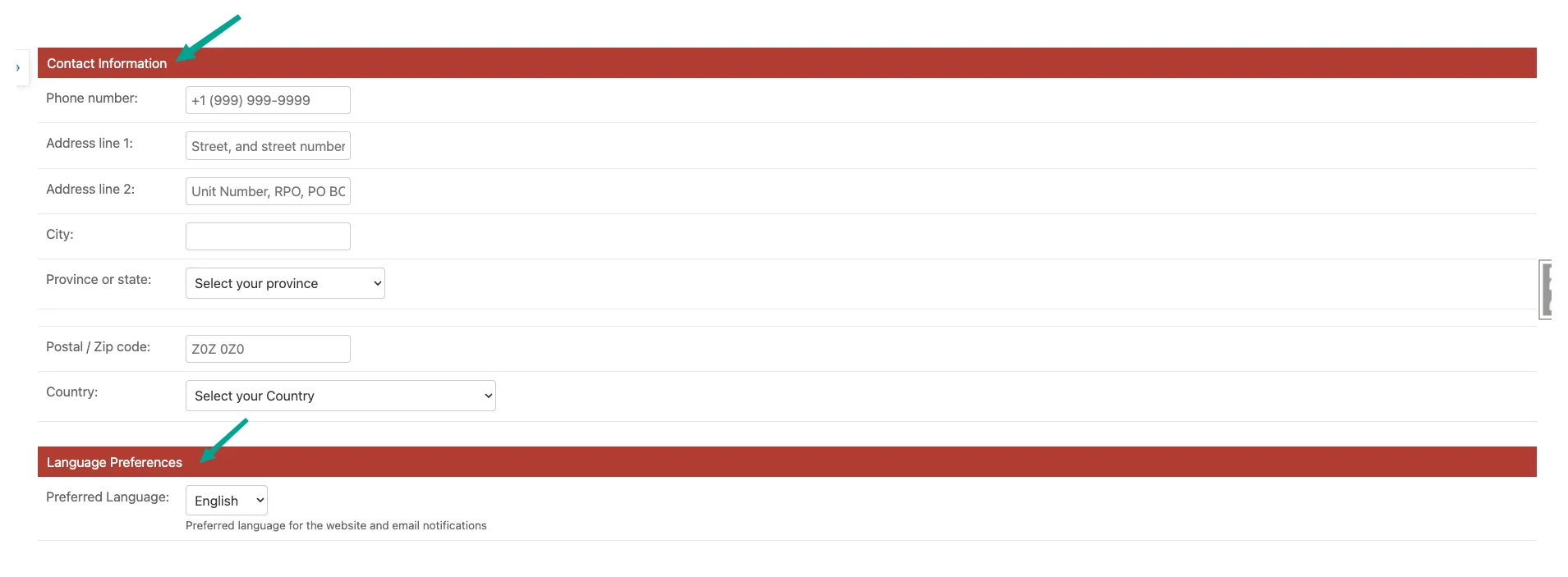
Fieldsets example
- Background Color
Hex color code for module box backgrounds
- Background Selected Color
Hex color code for selected/active module backgrounds
- Text Color
Hex color code for module text
- Link Color
Hex color code for module links
- Link Selected Color
Hex color code for selected module links
- Link Hover Color
Hex color code for module links on hover
- Rounded Corners
Checkbox to enable/disable rounded corners on module boxes
Generic Links
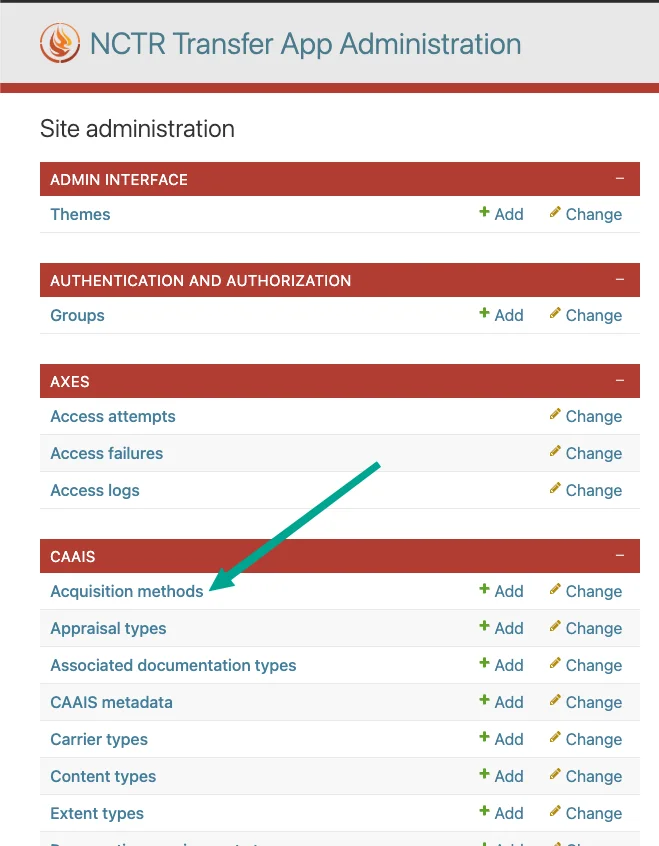
Generic links example 1
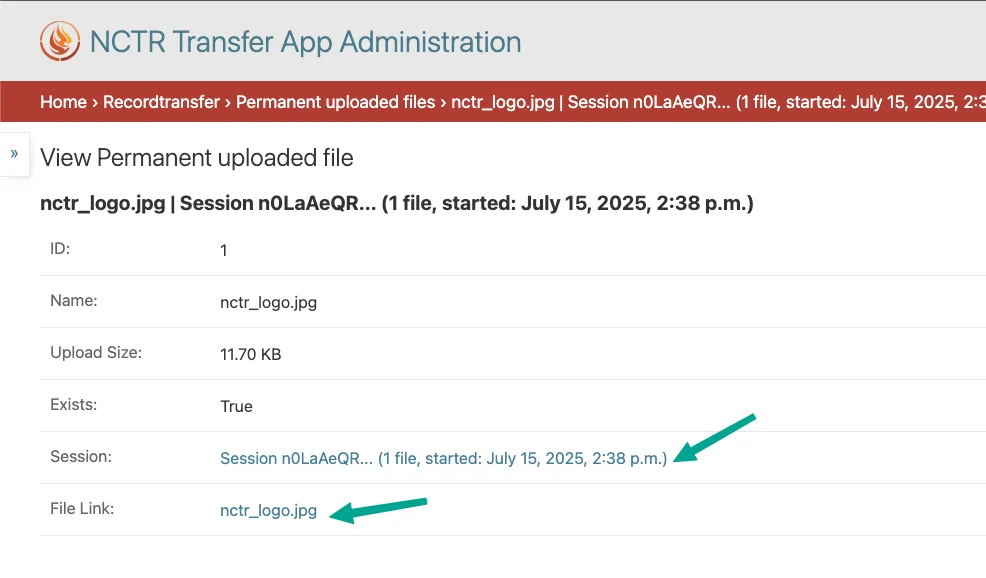
Generic links example 2
- Link Color
Hex color code for general links throughout the admin
- Link Hover Color
Hex color code for general links on hover
- Link Active Color
Hex color code for active/clicked links
Save Button
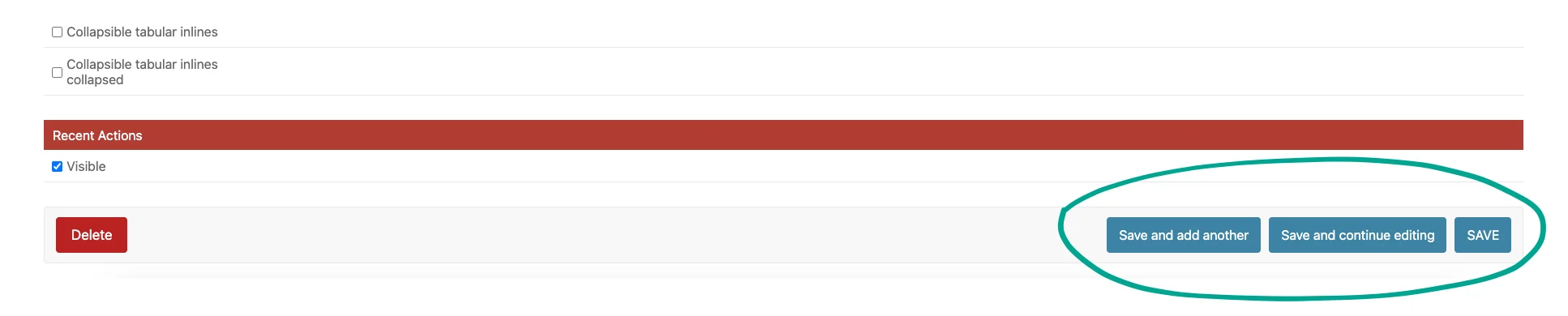
- Background Color
Hex color code for save button backgrounds
- Background Hover Color
Hex color code for save buttons on hover
- Text Color
Hex color code for save button text
Delete Button

- Background Color
Hex color code for delete button backgrounds
- Background Hover Color
Hex color code for delete buttons on hover
- Text Color
Hex color code for delete button text
Navigation Bar
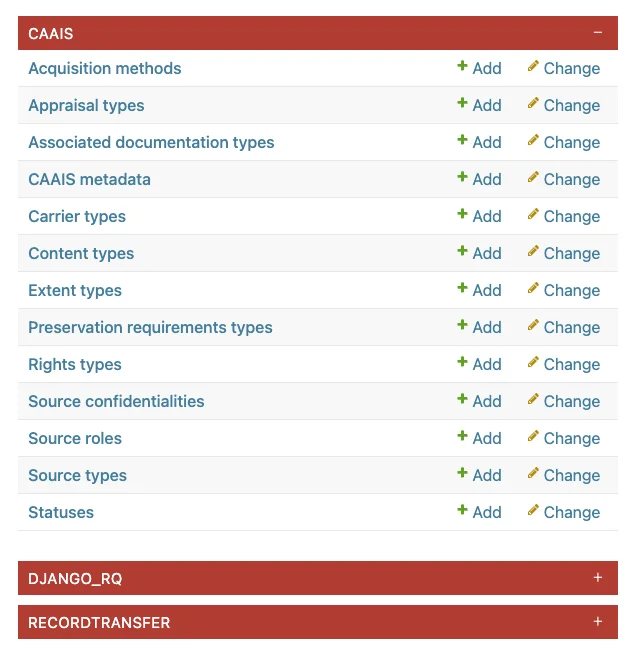
- Foldable apps
Checkbox to allow collapsing/expanding app sections
Related Objects Modal
- Active
Checkbox to enable/disable modal popups for related object editing.
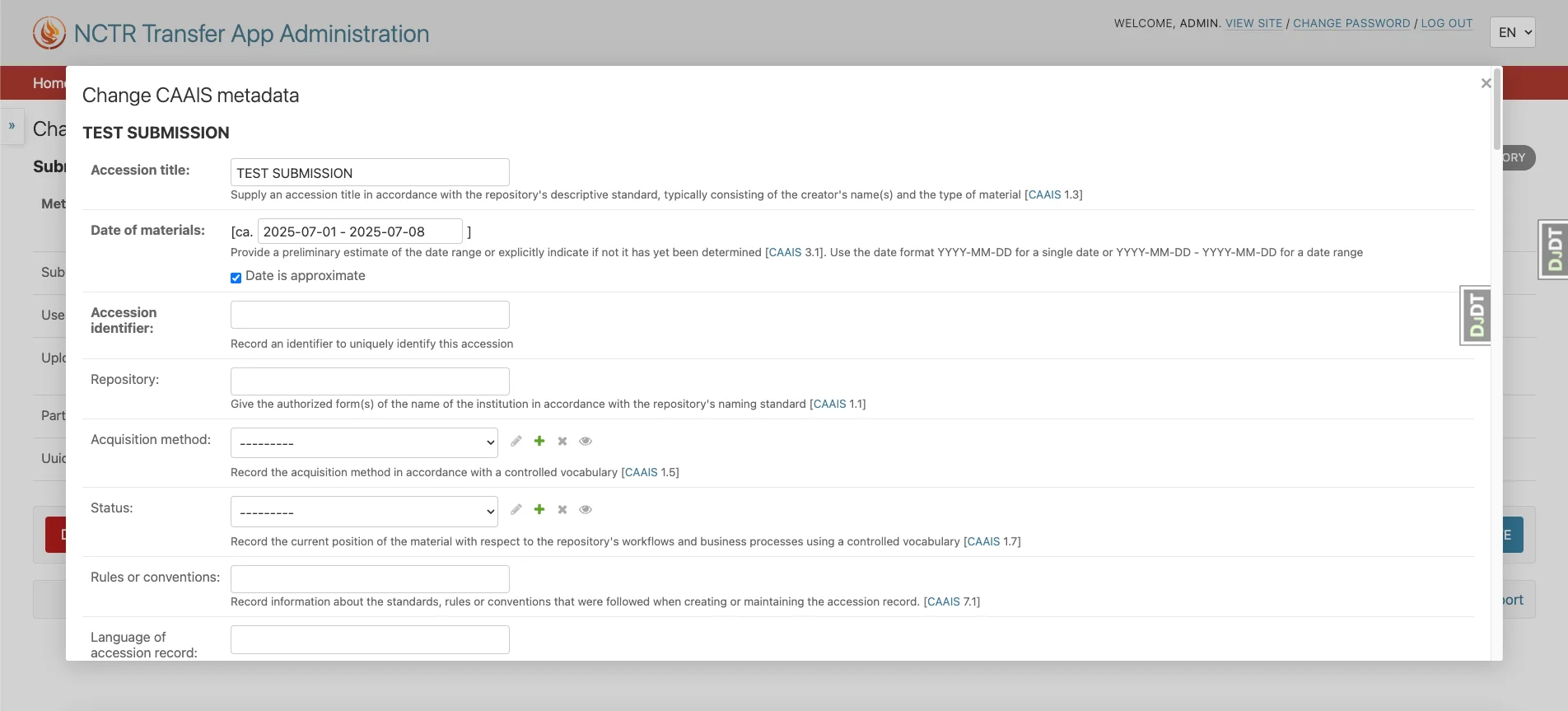
When related modal is enabled, editing objects opens in a modal popup.
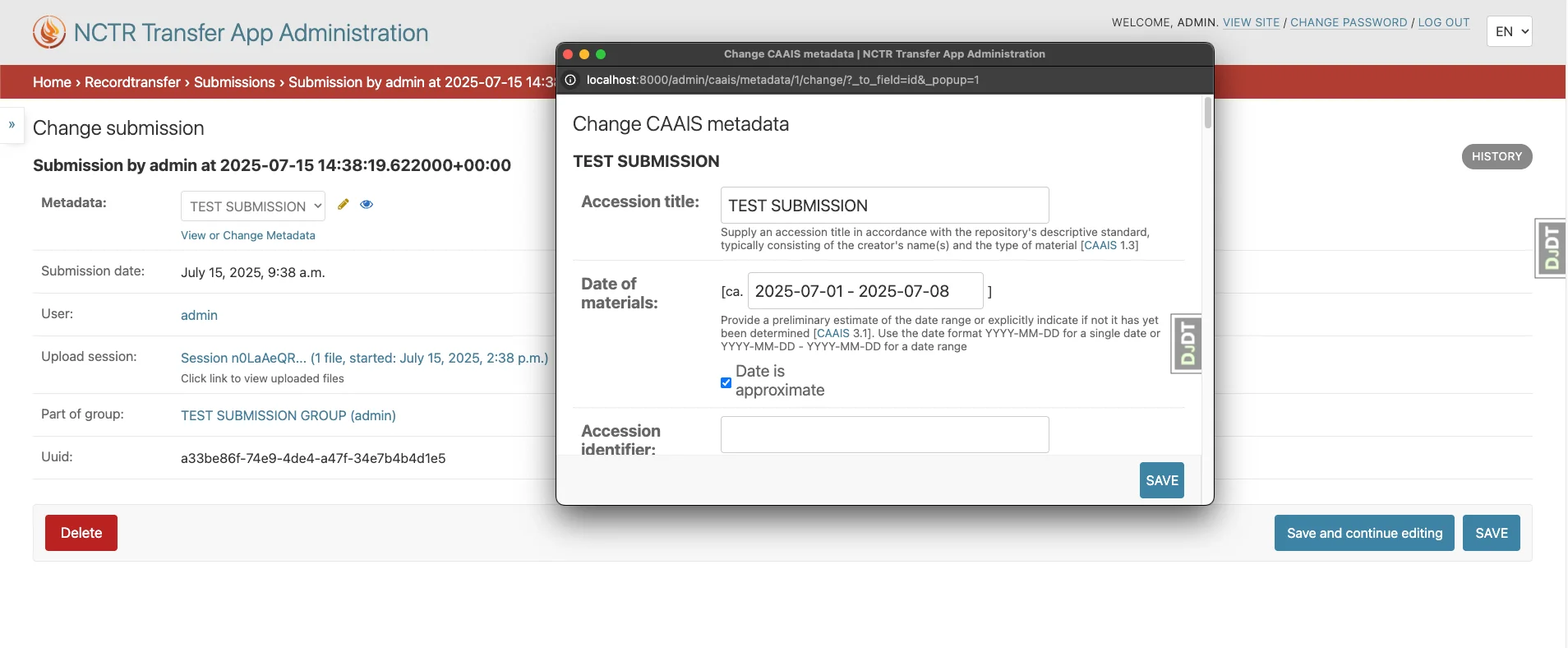
When related modal is disabled, editing objects opens in a new window.
- Background Color
Hex color code for the modal background overlay
- Background Opacity
Decimal value for background transparency
- Rounded Corners
Checkbox to enable rounded corners on modal windows
- Close Button Visible
Checkbox to show/hide the close button on modals
Form Controls
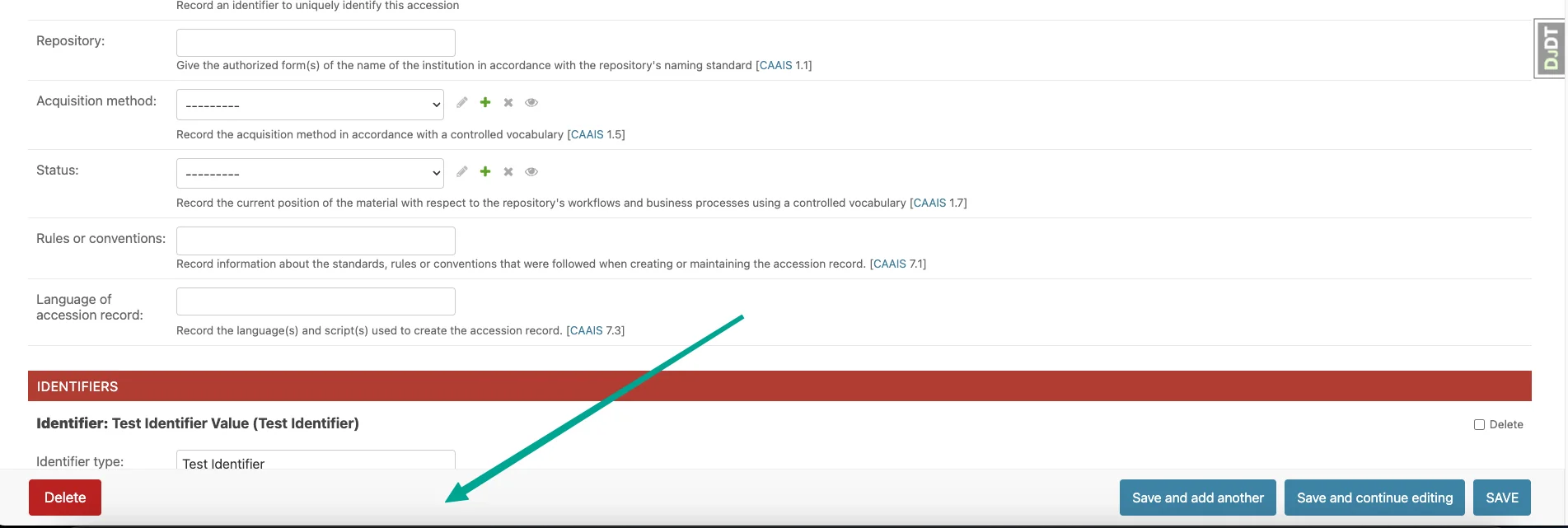
- Sticky Submit
When enabled, form submit buttons (e.g., “Save”, “Delete”) will stick to the bottom of the screen when scrolling.
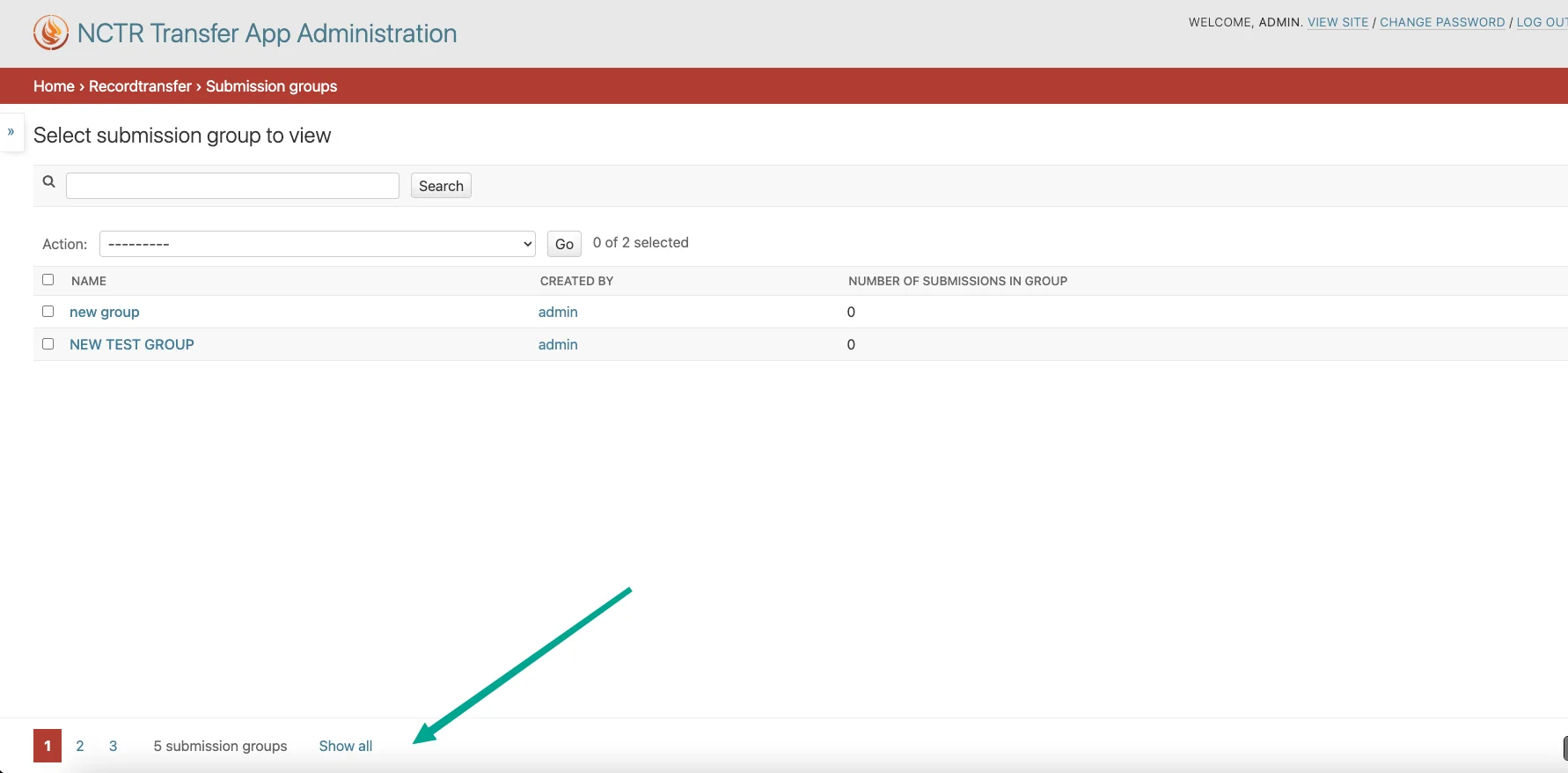
- Sticky Pagination
When enabled, pagination controls will stick to the bottom of the screen when scrolling.
List Filter
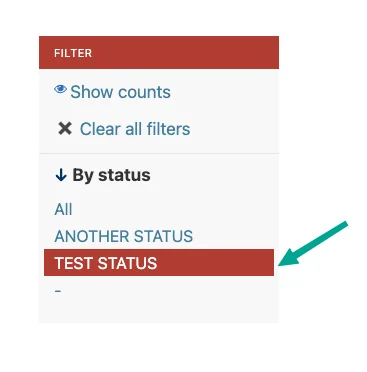
- Highlight
Checkbox to enable highlighting of active filters
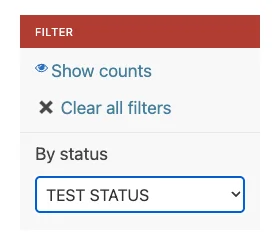
- Dropdown
Checkbox to use dropdown style for filters instead of default links
- Sticky
Checkbox to make filters stick to the top when scrolling
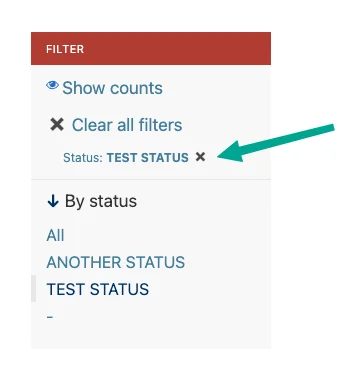
- Removal Links
Checkbox to show “x” links for removing individual filters
Change Form
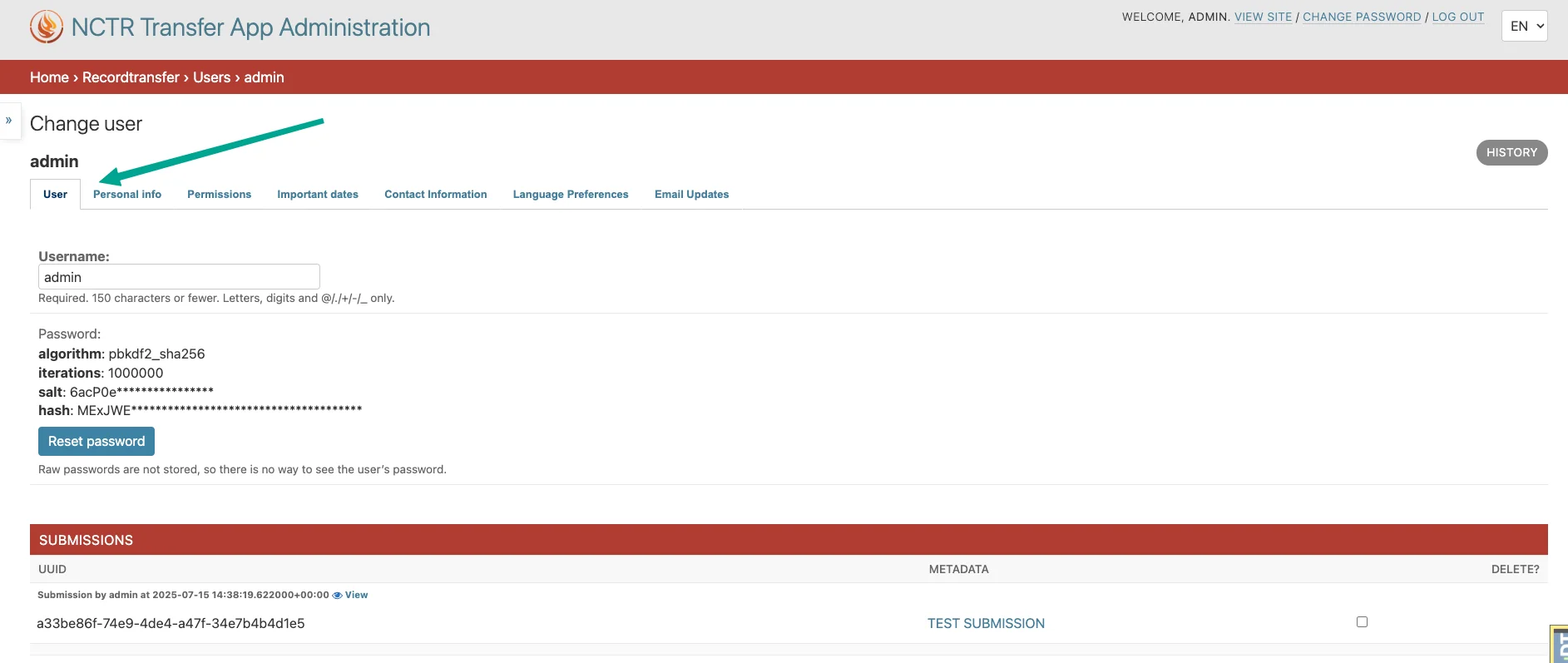
- Fieldsets as tabs
Checkbox to display form fieldsets as tabs instead of sections
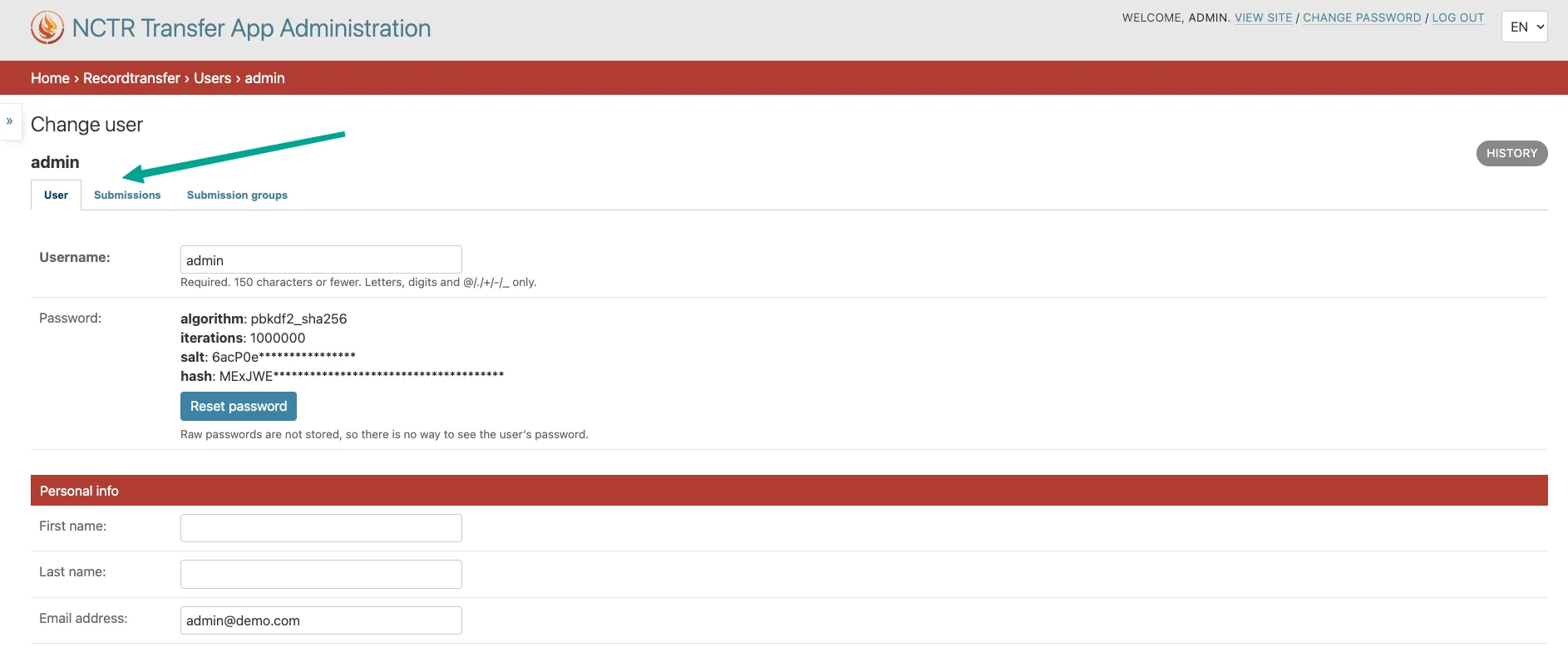
- Inlines as tabs
Checkbox to display inline forms as tabs
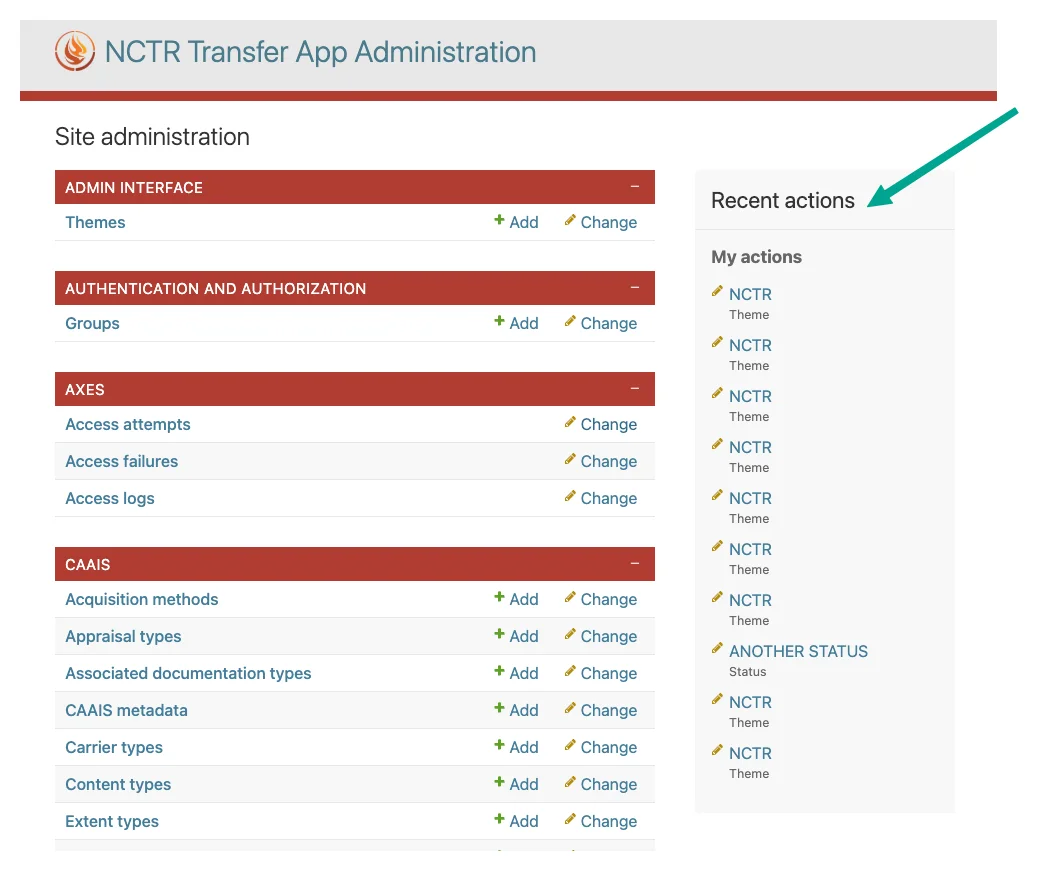
Recent Actions
- Visible
Checkbox to show/hide the recent actions sidebar on the admin home page