Managing Submissions
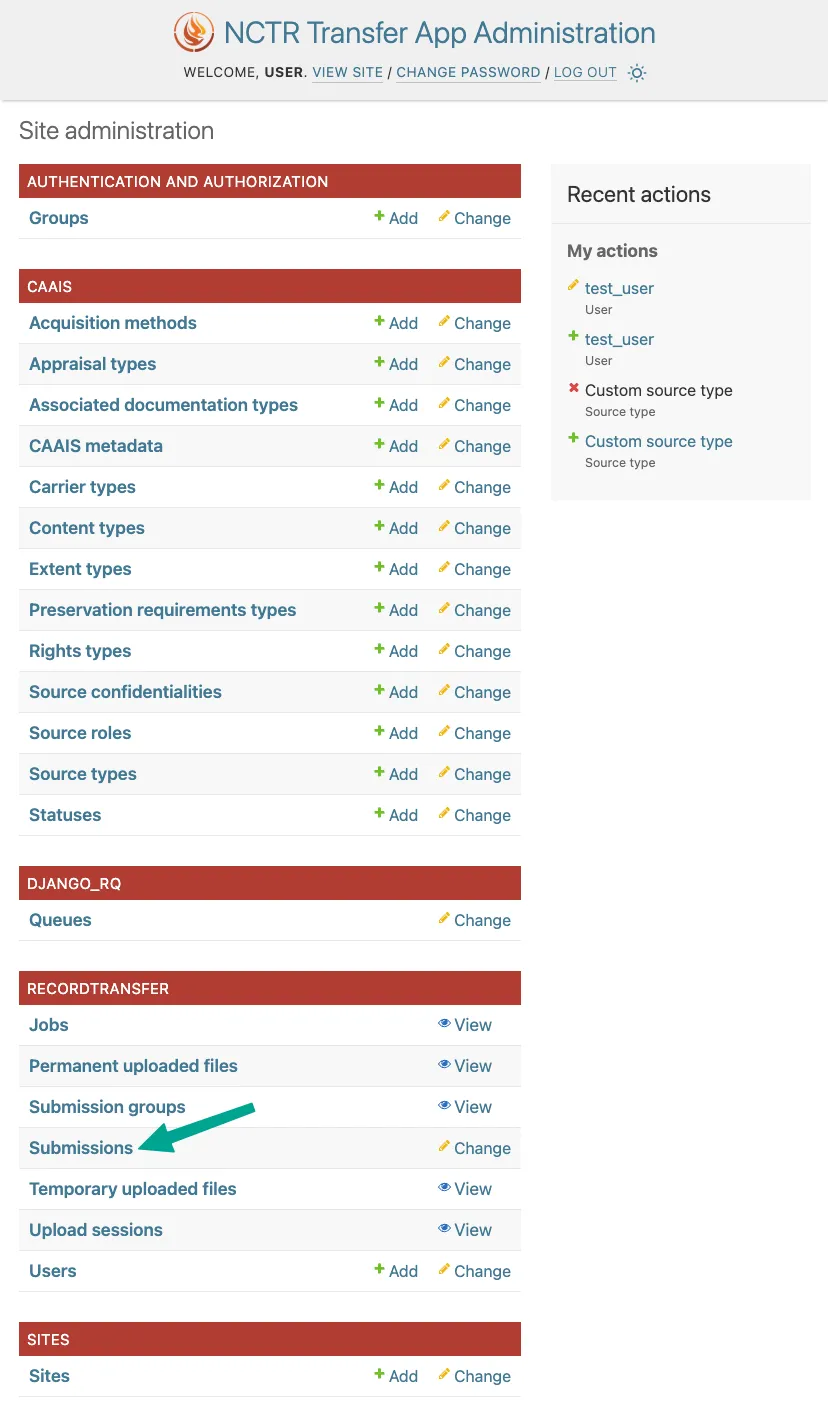
Submissions made by donors through the Submission Form can be managed by staff members in the administrator application. To access the submissions, click on Submissions in the admin home page.
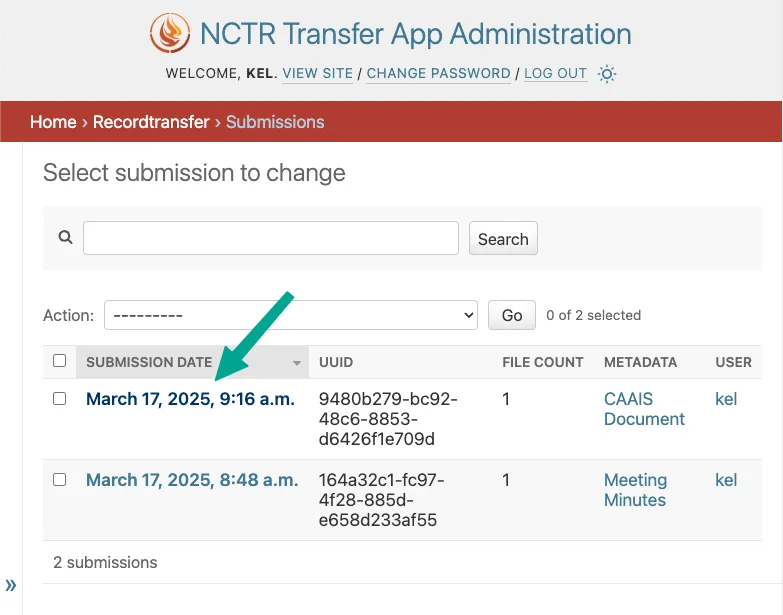
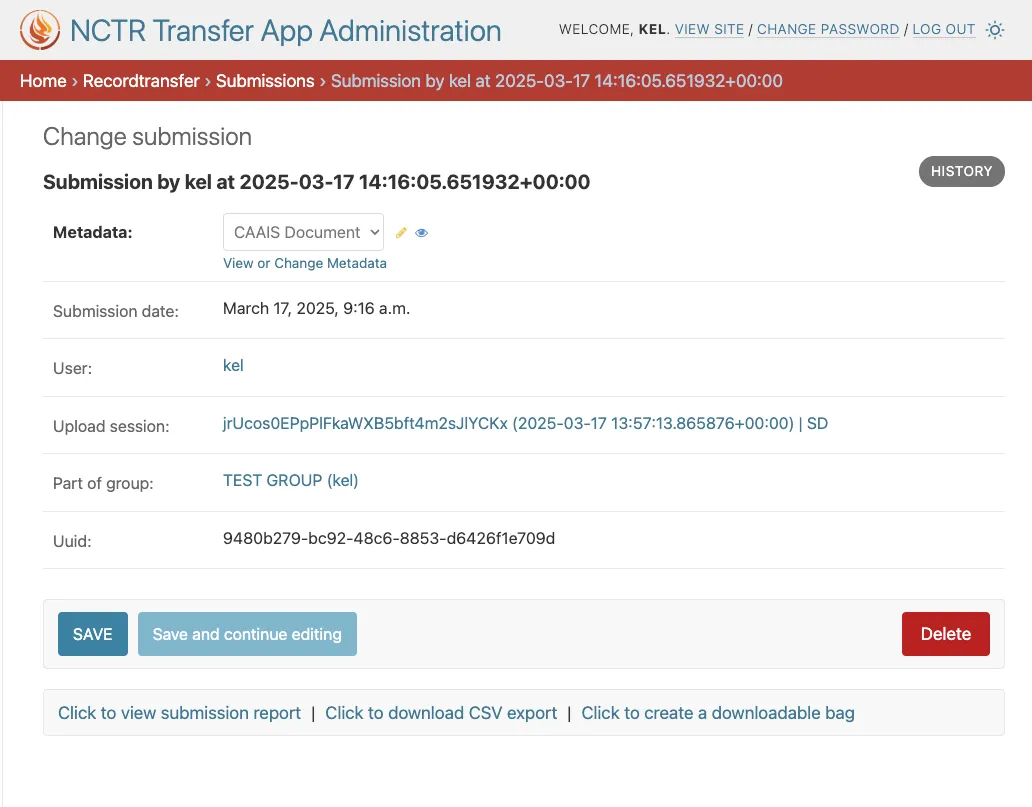
To view the details of a submission, click on the submission’s date. This will take you to the submission’s detail page, where you can find additional details about the submission, as well as additional actions that can be taken.
Searching Submissions
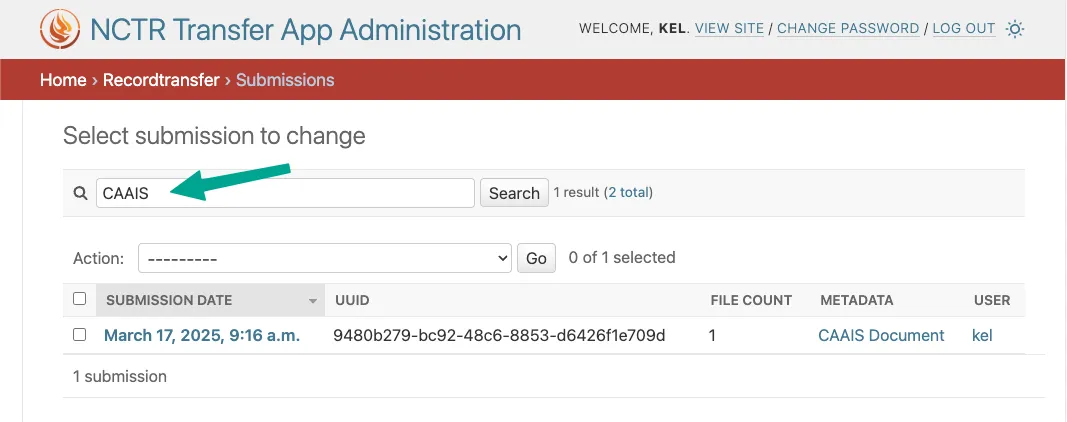
On the Submissions admin page, you will find a table of all existing submissions, with the most recent submissions at the top. To look for a specific submission, use the search bar at the top of the page. You can search by:
The donor’s username or email
The submission’s accession title
The submission’s UUID
Generating Submission Reports
To view a report of the submission, firstly navigate to the submission’s detail page. From there, click on Click to view submission report at the bottom of the page.
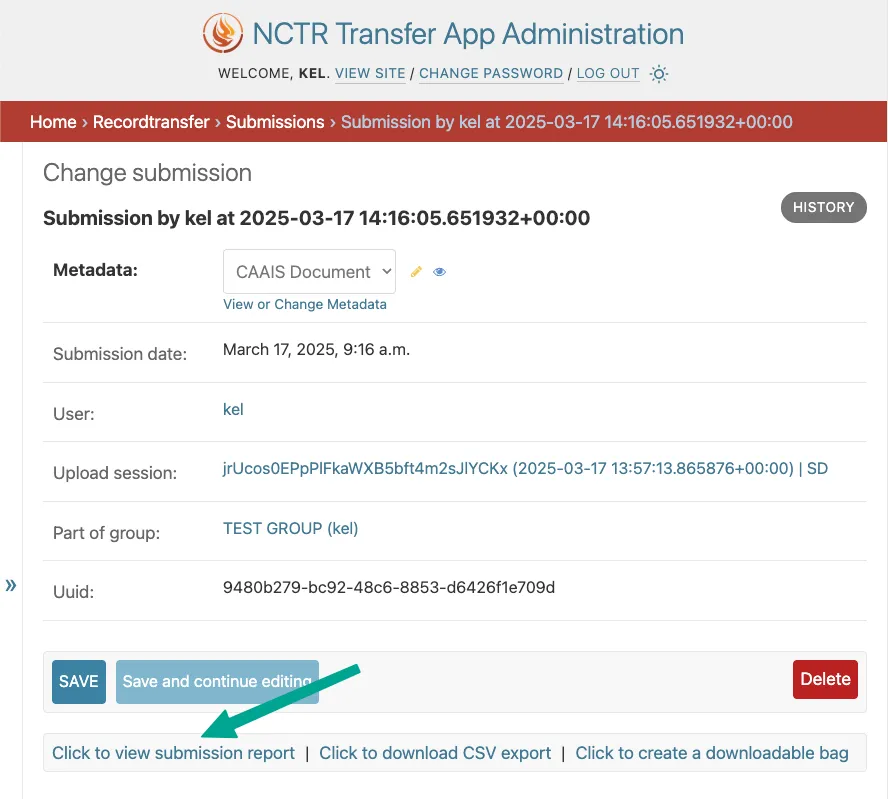
This will open up a new tab with a report of the submission, formatted in accordance with CAAIS. This same report is available to the user who made the submission, on their Profile page.
Exporting CSVs for Submissions
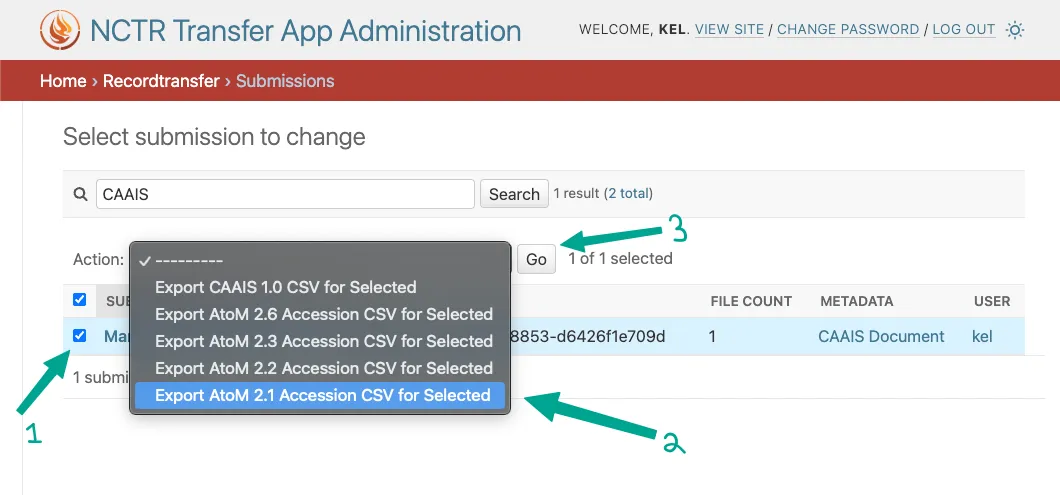
From the Submissions admin page, you can export submission data as CSV files. Simply select the checkbox next to one or more submissions you want to export, choose your desired format/version from the dropdown menu, and click the Go button. Selecting multiple submissions will be compile all submission data in a single CSV file.
Note
CSV exports will only include text fields and not the uploaded files. To download the files associated with a submission, you will need to generate a BagIt bag.
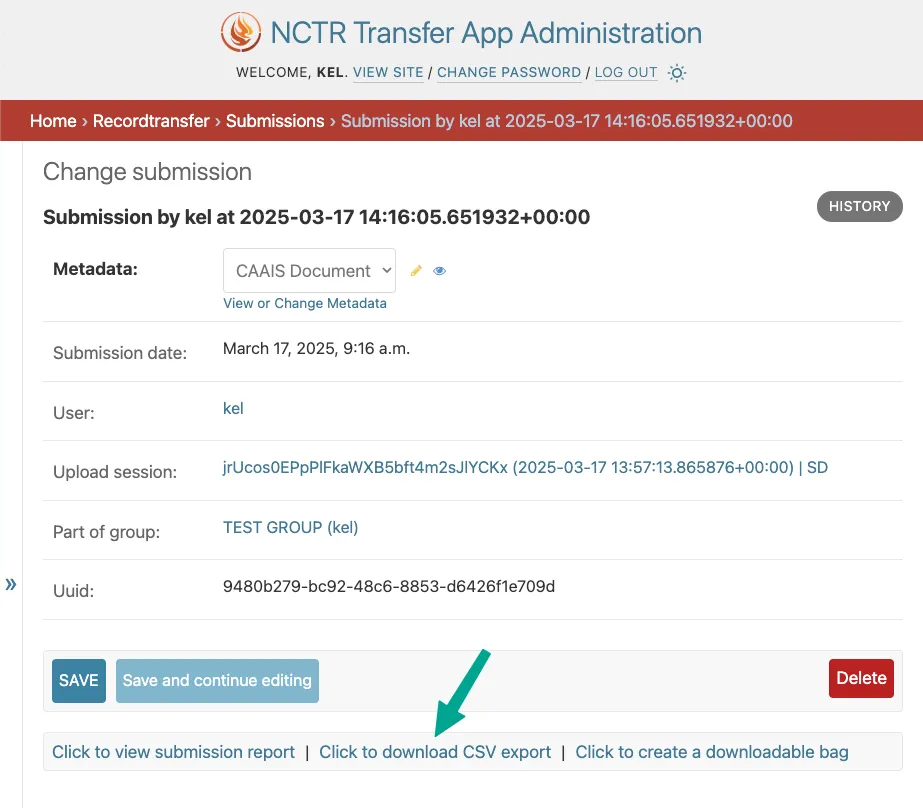
A CSV of the submission can also be downloaded from the submission detail page by clicking on Click to download CSV export. Note that CAAIS 1.0 is the default format used for the CSV export with this method.
Generating BagIt Bag for Submissions
To generate and download a BagIt bag for a submission, firstly navigate to the submission’s detail page. From there, click on Click to create downloadable bag.
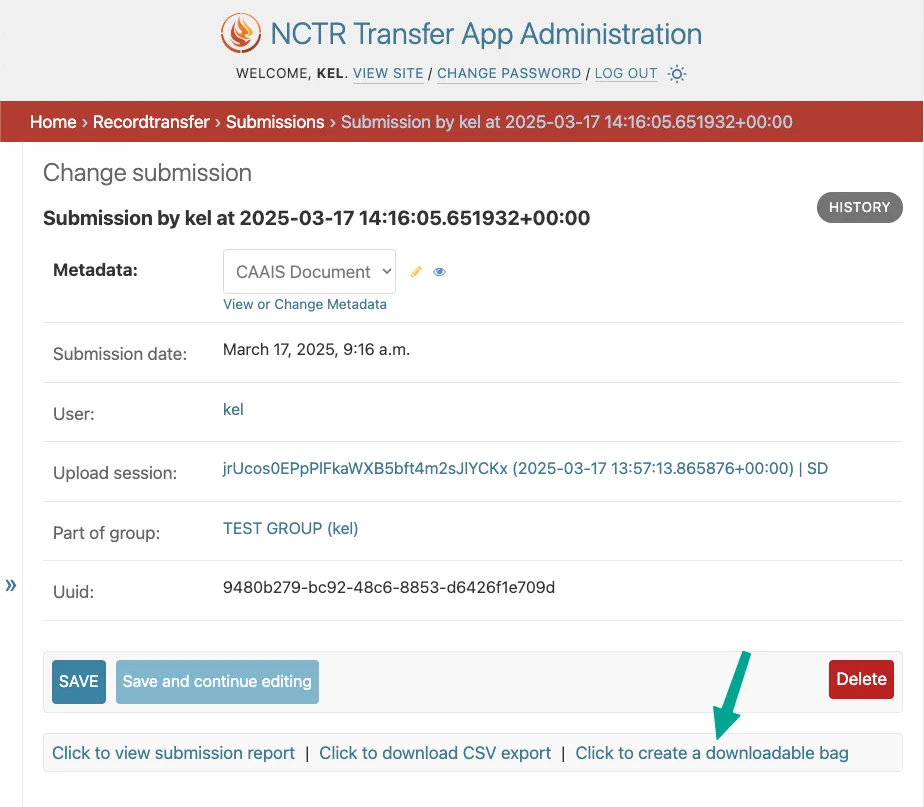
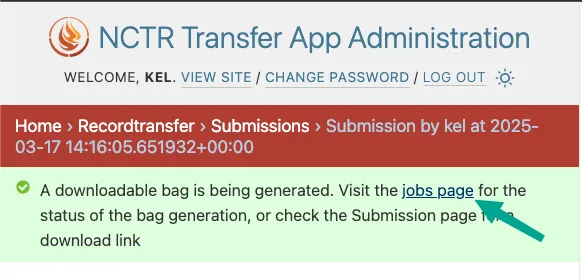
This starts a job that runs in the background to create the BagIt bag. You should see a message at the top of the page indicating that the bag is being created. To check on the status of the bag creation, click on the jobs page link included within the message.
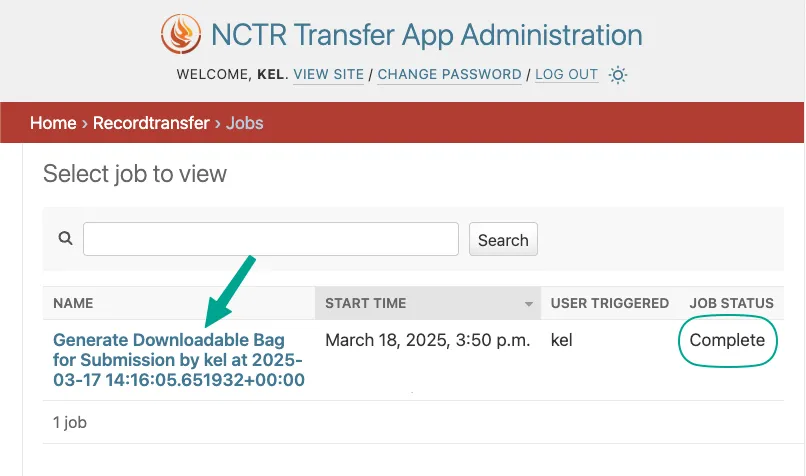
The time it takes to create the bag depends on the size of the files included in the submission, but most bags are created almost instantly. Once the status of the job shows as Complete, click on the job name to view the job details.
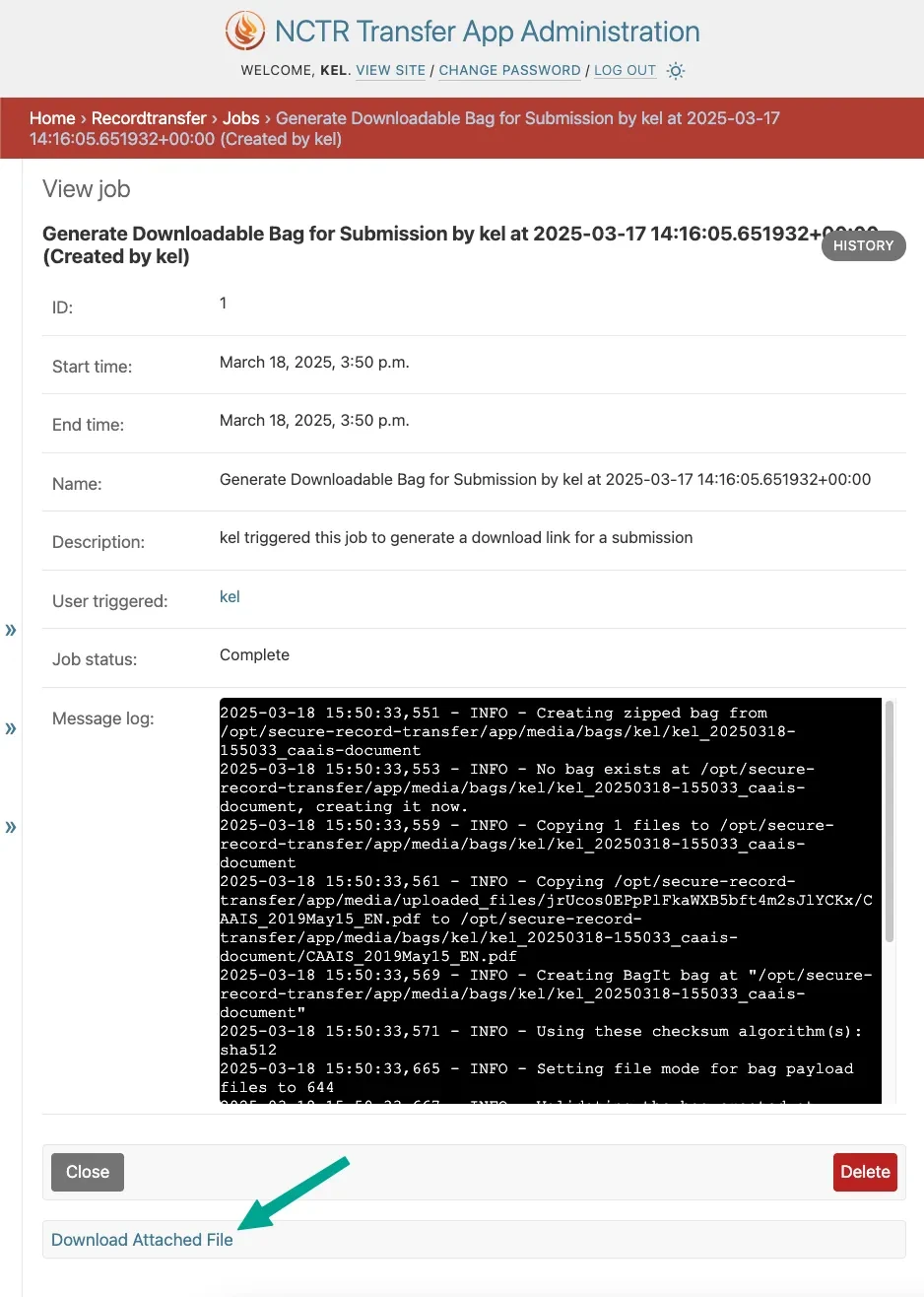
On the job details page, you can download the generated BagIt bag by clicking on Download Attached File.
Viewing and Editing Submission Metadata
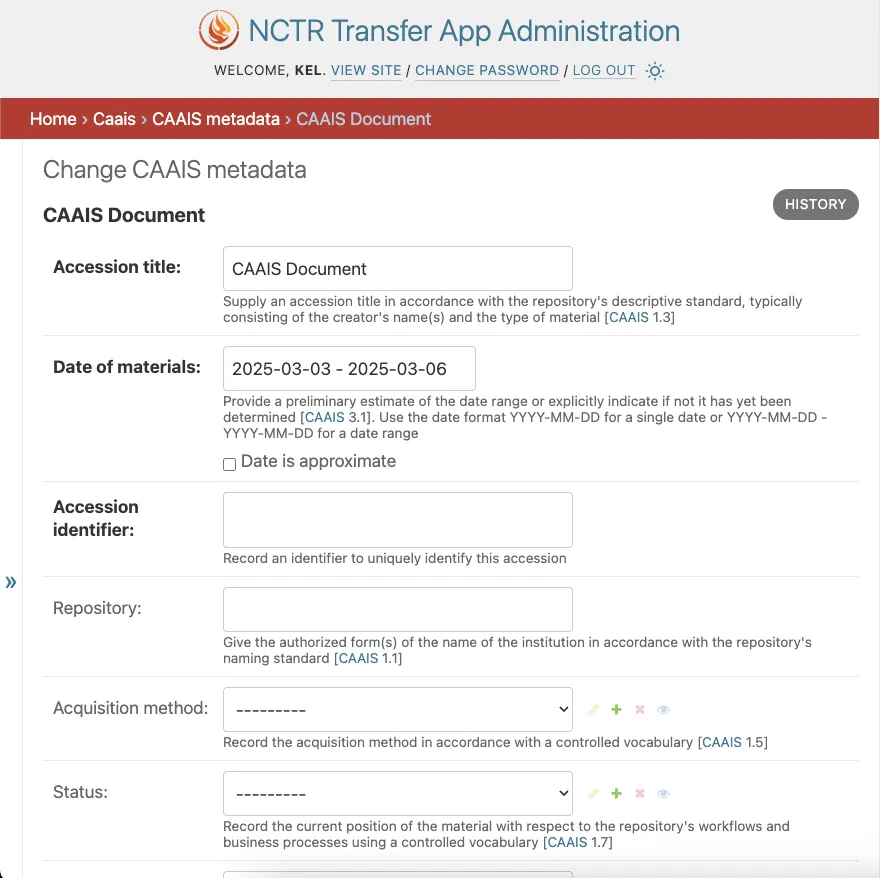
To view and edit the metadata associated with a submission, navigate to the submission’s detail page. From there, click on View or Change Metadata.
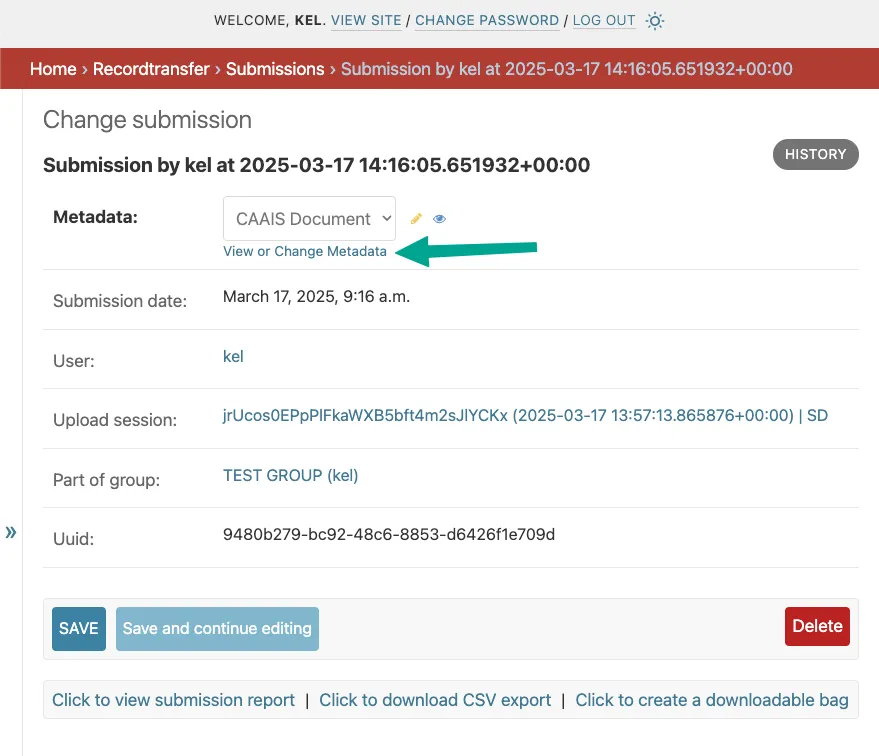
This opens up a change form where you can view and modify the metadata associated with the submission. Once you have made your changes, click on SAVE at the bottom of the page to save your changes.